Sites and zones
Add your locations, pause one when needed and divide a site into zones.
A site is a physical location where visitors arrive: an office, a building, a warehouse. Every visit, kiosk and print agent belongs to one site. Sites and devices in Settings lists them, active sites first, then paused ones. Only owners and admins open this section; reception and security see every site and its devices on the Sites page.
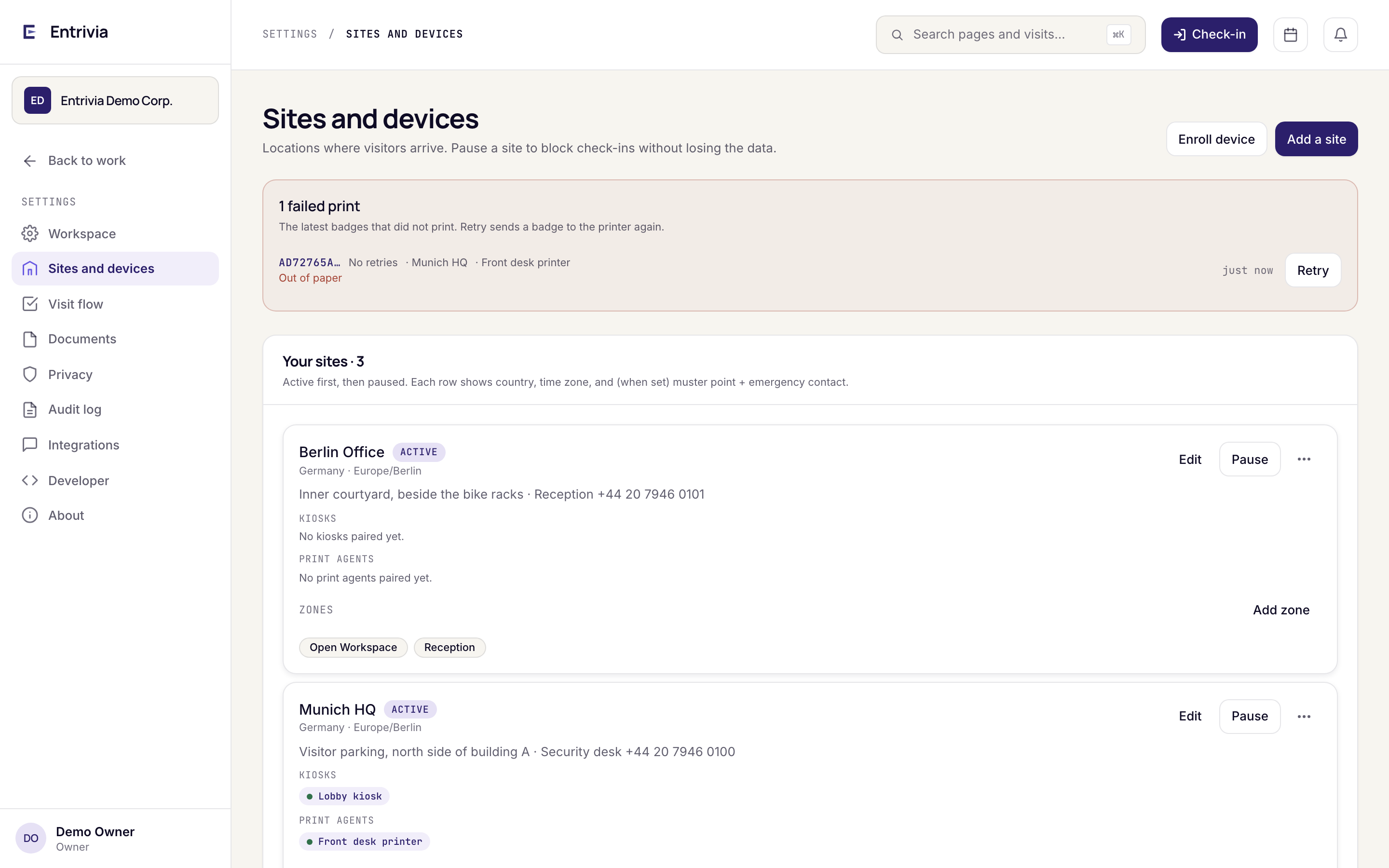
Adding a site
- Select Add a site.
- Fill in the form:
| Field | What it is for |
|---|---|
| Site name | How staff and visitors see the site. Two sites cannot share a name. |
| Country | Where the site is. Phone numbers for this site start with its country's dialling code. |
| Time zone | Decides what "today" means at this site: the reception list, the kiosk and the figures on the Dashboard all count the site's own day. |
| Default language | Optional. Overrides the workspace language for this site. |
| Muster point | Where people gather in an evacuation. |
| Emergency contact | Who to call in an incident at this site. |
- Select Add site. A new site is active straight away.
Under its name, each site shows its country, time zone and language, for example "Germany · Europe/Berlin".
Note: The street address and business hours cannot be entered or edited in the portal yet. The first site gets its address from your operator's setup; visitors see a site's address on their pre-arrival page when one is stored.
To change a site later, select Edit on its row, make your changes and select Save changes. Sites cannot be deleted. Three settings are only offered when you edit a site:
| Field | What it is for |
|---|---|
| Safety briefing override | A briefing for this site instead of the workspace default. |
| Override pre-issue checklist for this site | Gives this site its own checklist; see Checklists, fields and badges. |
| Badge layout | Use the workspace badge layout or Custom layout for this site. |
Pausing a site
Select Pause to stop new activity at a site, for example during a refurbishment. While a site is paused:
- no new visitors can be invited to it,
- nobody can be checked in there, at reception or at a kiosk,
- no new kiosk can be set up there.
Visitors already in the building keep their passes until they check out or the pass expires. Select Resume to open the site again. Nothing is lost while a site is paused.
Zones
Zones are areas inside a site, such as the lobby, an office floor or a lab. A visitor's pass lists the zones they may enter, taken from their visitor category.
- On the site's row, select Add zone.
- Enter a Name, for example "R&D Lab", and an ID, a short identifier in lowercase letters and hyphens, for example
rd-lab. - Select Create zone.
The site's row lists its zones by name. The ID cannot be changed later, because passes and categories refer to it. If a zone is no longer needed, select its name and then Archive zone: it disappears from the pickers, while passes that already name it stay valid. An archived zone's ID can be used again for a new zone.
The site's row also shows its kiosks and print agents; see Kiosks and print agents.