On site and evacuation
Who is in the building now, the muster list during an evacuation or drill, and what to prepare beforehand.
On site shows who is in the building right now, site by site. When the alarm sounds, the same page holds the muster list: everyone who was on site when the evacuation started, with a large tick per person for the fire wardens, and a report afterwards.
On site is in the rail for owners, admins, reception and security, who see every site, and for everyone with the extra permission Evacuation roll call (the fire wardens), who see the sites they are assigned to.
Who is on site
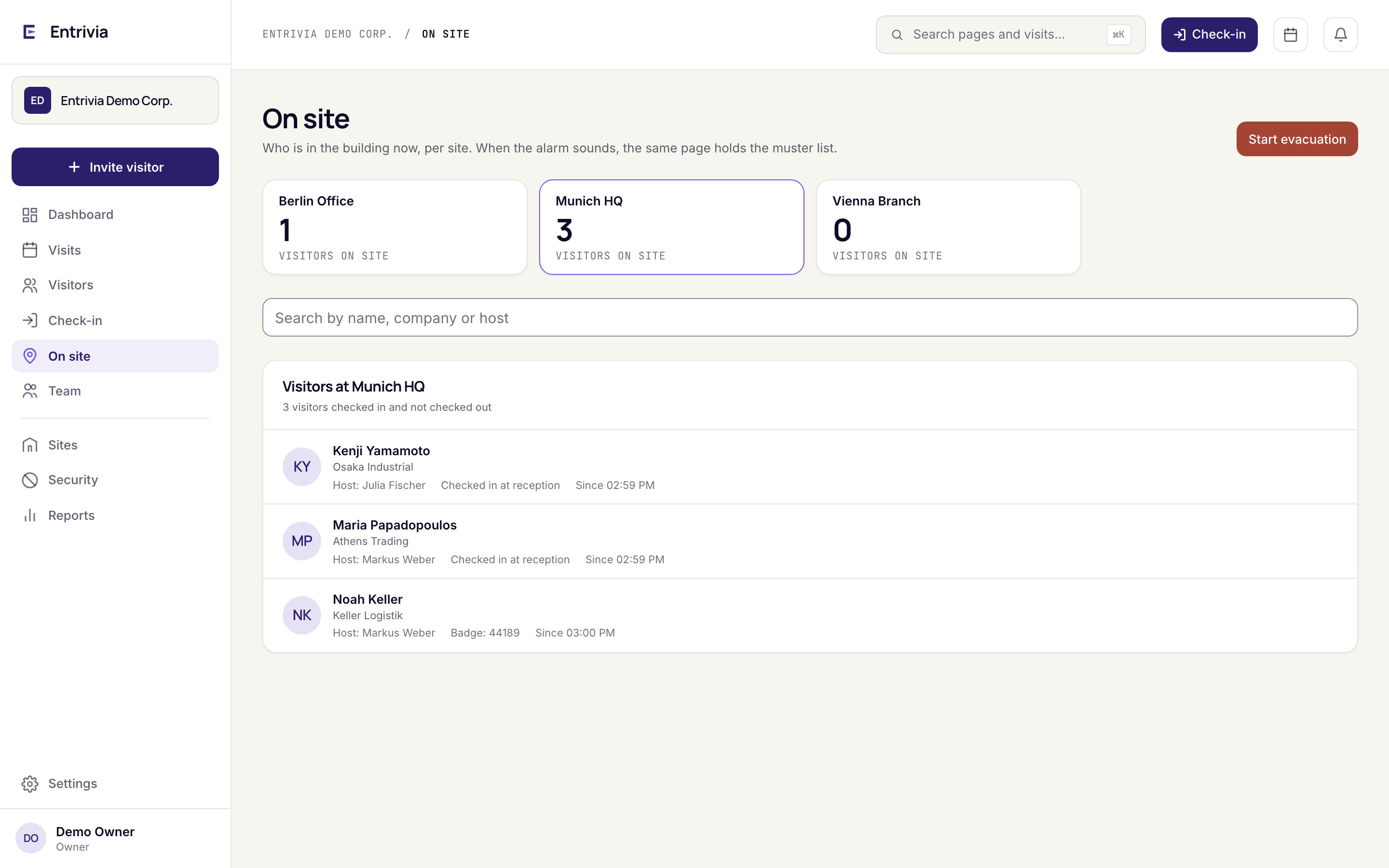
The tiles at the top show each site with the number of visitors on site now; select one to see its people. A site with an evacuation running is marked Evacuation running. Each visitor row shows the company, the host, where they were last seen (a zone, a kiosk with the time, or Checked in at reception) and since when they are on site. The search box narrows the list by name, company or host.
When the workspace has staff presence on, a second list shows the employees who marked themselves on site today, and Mark me on site here adds you.
The page updates on its own every 30 seconds and as soon as someone checks in or out. The Currently on-site figure on the Dashboard opens this page.
Start an evacuation or a drill
Owners, admins and security start an evacuation:
- Select the site and choose Start evacuation.
- Choose Drill (a practice run, kept as evidence and marked as a drill) or Real evacuation (the wardens and security get an alert email at once). A drill sends the alert only if you tick Also send the alert email for this drill.
- Confirm with Start drill or Start real evacuation.
Everyone on site at that moment goes on the muster list. If nobody is on site, Entrivia says so and starts nothing.
Work through the muster list
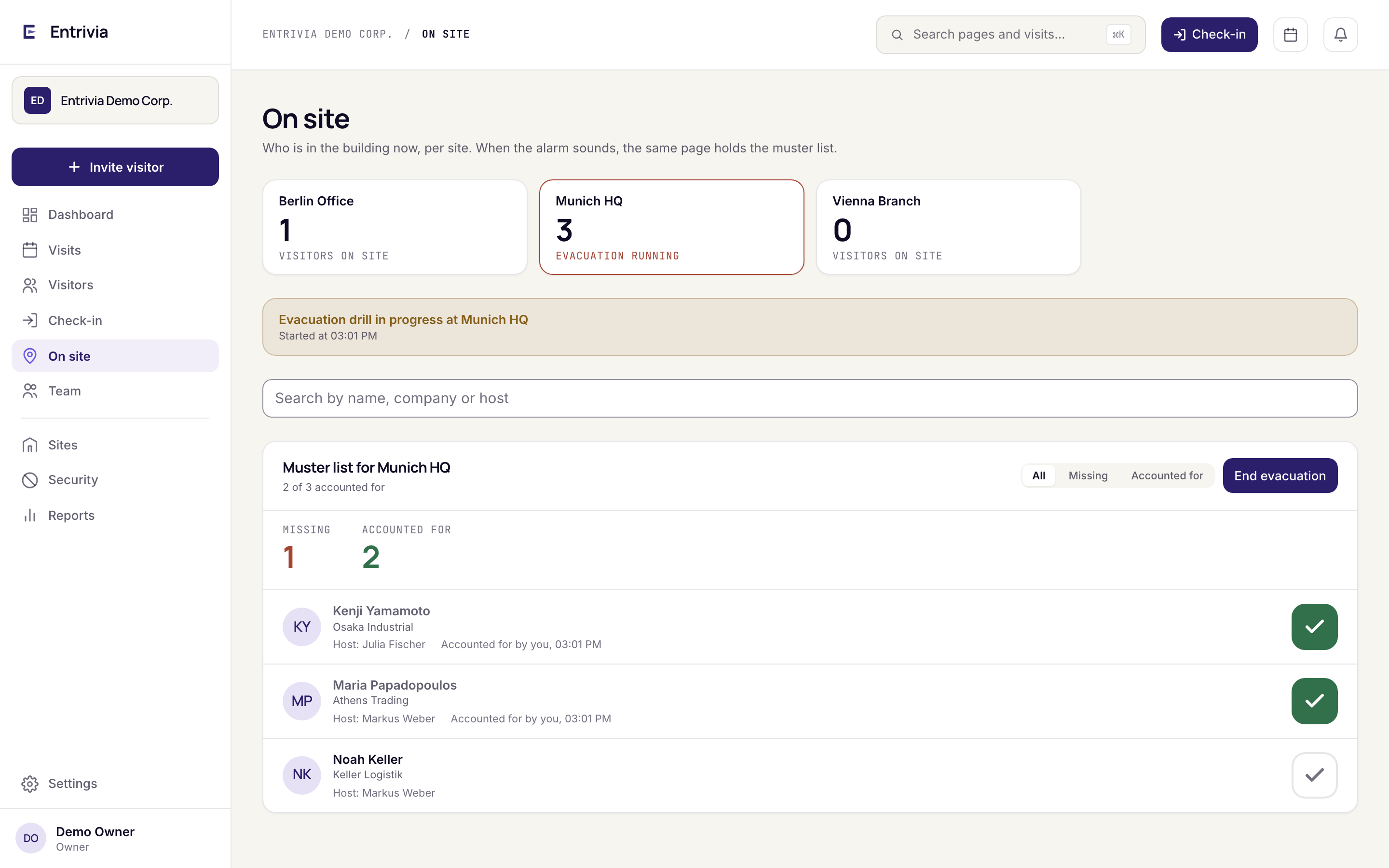
A banner names the site and when the evacuation started. Above the list, Missing and Accounted for count down as wardens work. All, Missing and Accounted for filter the list.
Fire wardens tap the tick beside a person when they see them at the muster point; tapping again takes the tick back. Each row then says who ticked it and when. Several wardens can work at once on their own phones or laptops: every tick appears on the others' screens within seconds. If two wardens mark the same person, the later mark stands, and Entrivia tells the warden whose mark was replaced.
A visitor who checks out during the evacuation stays on the list, marked Checked out after the alarm, because the list records who was inside when the alarm went off. Admins, security and reception without the warden permission see the list with each person's status, without ticks.
End the evacuation and read the report
When everyone is accounted for, or the building is clear, an owner, admin or security chooses End evacuation. Entrivia asks first and says how many people are still missing. Ending closes the list; ticks after that are refused.
The report opens straight away: how many people were on the list, accounted for, evacuated, injured and never accounted for, then everyone with their final status, the people never accounted for first. Past evacuations and drills under the list opens the reports of earlier incidents at the site. Entrivia keeps an evacuation and its list for 24 months after it ended, then deletes them; see Automatic deletion. Every start, tick and end is recorded in the audit log, drills marked as such.
Prepare beforehand
- Muster point and emergency contact. Under Settings → Sites and devices, edit each site and fill in the Muster point and the Emergency contact. See Sites and zones. The muster point is part of the alert email.
- Wardens. On Team, give each fire warden the extra permission Evacuation roll call and assign them to the sites they cover with Sites; a warden with no assigned site covers every site. See Changing roles and permissions.
- Staff presence. The Staff presence switch in Settings → Visit flow lets employees mark themselves on site, so the muster list includes staff. Marks are cleared at the end of each day; turning the switch off clears everyone's mark. It is off by default.
Keep "on site" accurate
Entrivia counts a visitor as on site from the moment they arrive at the desk or kiosk until they are checked out, including a visitor waiting at reception. A visitor who leaves without checking out stays on the list. That is why check-out matters:
- Ask visitors to check out at the kiosk or at the desk when they leave.
- When someone has clearly left, use Mark as checked out on their visit (see Checking out).
Note: A warden app for phones that keeps working without a network is planned. Until then, wardens use the portal in the browser of their phone.