Wait screens and check-out
What the wait screen means for reception, the kiosk's accessibility options, and self check-out.
The wait screen
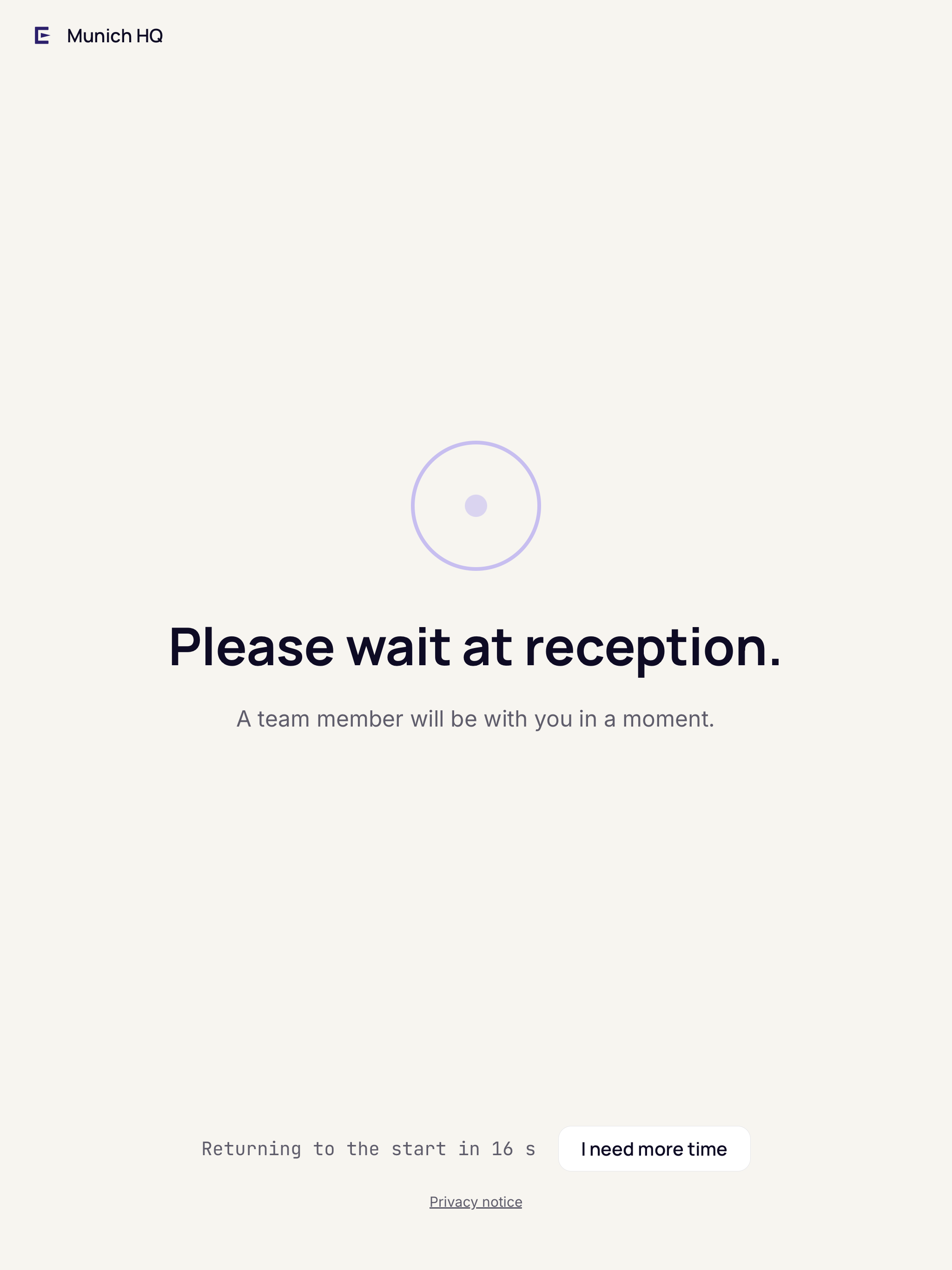
Whenever the kiosk cannot finish a check-in, it shows Please wait at reception. and "A team member will be with you in a moment." It shows this one screen for every reason:
- the visitor matches a blacklist entry,
- a compliance check is pending,
- the visitor declined to sign the NDA or refused a required photo,
- the host could not be reached in time.
The visitor never learns the reason. That protects both the visitor and your company: a blacklist entry or a screening match is not something to read out in a lobby. Reception and security see the reason in the portal, through the notification bell and on the visitor's check-in; see Held visitors. Greet the visitor, find their check-in under Check-in or Visits, and take over from there.
Help for every visitor
The start screen has three options in its footer:
| Option | What it does |
|---|---|
| Language | Switches the kiosk to English, Deutsch, Français or Español |
| High contrast | Uses darker text and borders on every screen |
| Privacy notice | Opens a short notice: what is recorded, why, for how long and the visitor's rights |
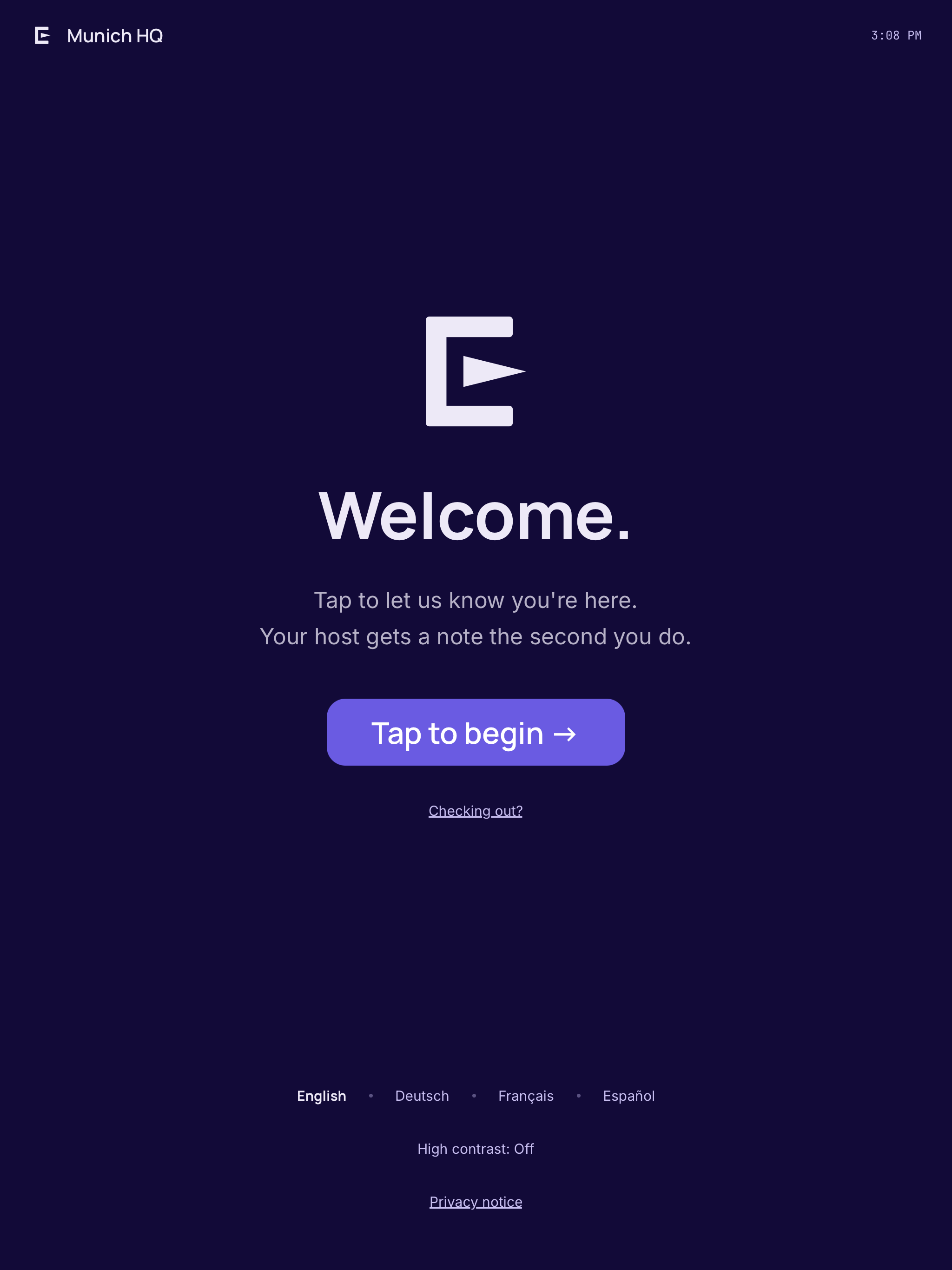
The kiosk returns to the start screen on its own, so that no visitor's details stay on the screen. In the last 20 seconds before that, it shows a countdown and the button I need more time, which a visitor can use up to ten times on one screen. If nobody touches the tablet for 90 seconds in the middle of a check-in, the check-in is cancelled.
Checking out
- On the start screen, the visitor taps Checking out?
- They type their five-digit code under Check-out code and tap Check out.
- The kiosk shows Goodbye, with their first name. The visit is closed and the pass stops working.
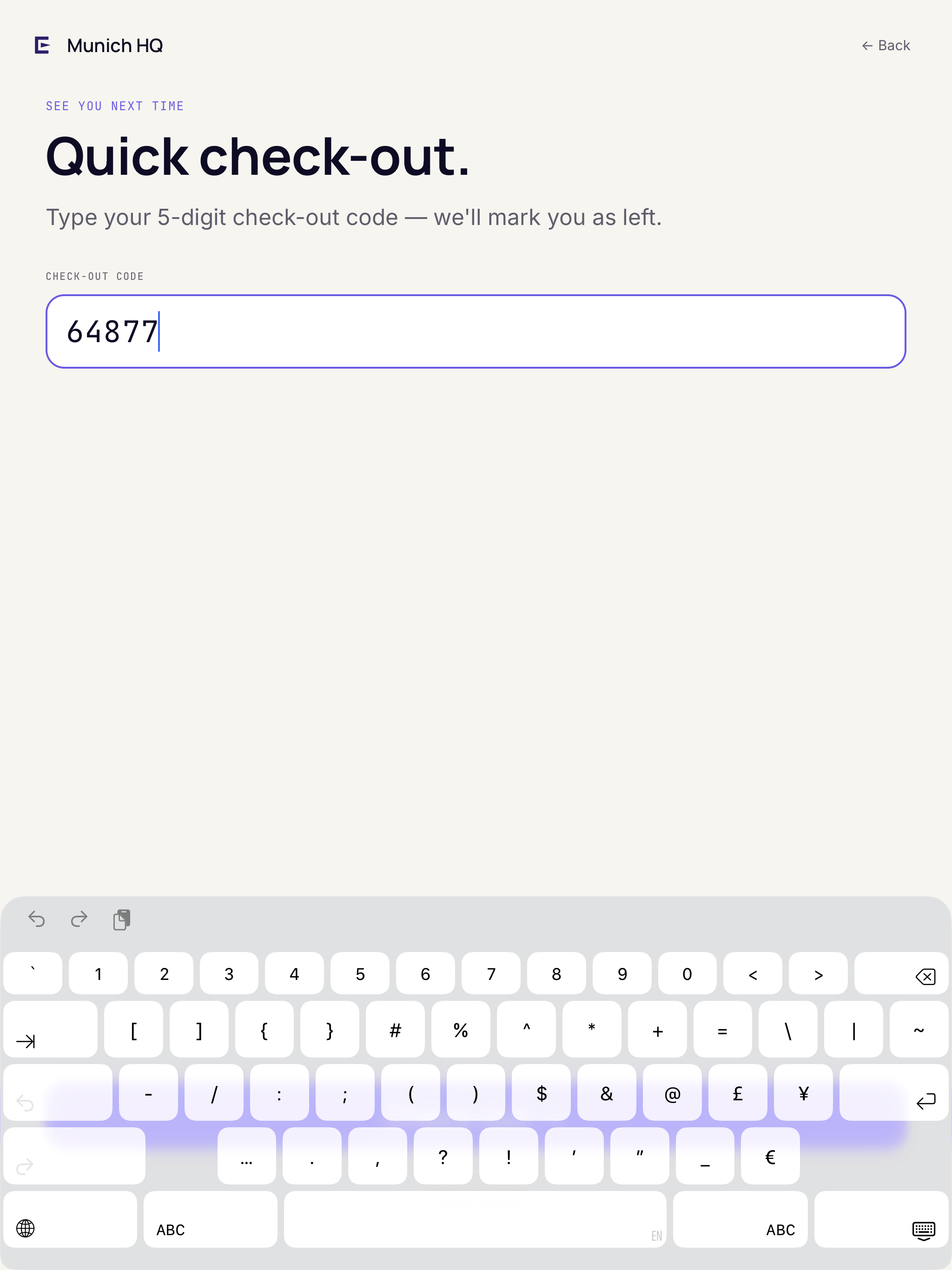
The kiosk does not accept an email address for check-out, because an email address is not a secret. It also has no QR scanner for check-out today.
If the code is wrong, the kiosk says "We couldn't find your check-in. Please see reception." After three wrong codes within five minutes, code entry on that kiosk is blocked for five minutes, so nobody can guess codes, and the kiosk shows the wait screen. The block is recorded in the audit log.
Note: The code is on the kiosk's welcome screen after a kiosk check-in and printed under the QR code on the badge. After a desk check-in at a site without a badge printer, reception tells the visitor the Code shown on Issue badge. Anyone without their code is checked out at the desk with Mark as checked out; see Checking out.