Kiosks and print agents
Pair a lobby tablet or a reception PC with a site, watch its status and retire it when needed.
Kiosks and print agents are devices, not people: they have no user account. Each one is paired with exactly one site through a one-time code that an owner or admin creates under Settings → Sites and devices. Installing the Entrivia Kiosk app on the tablet and the Entrivia Print Agent on the PC is done by your operator or IT team.
Setting up a kiosk
On Sites and devices, open the … menu on the site's row and select Enroll kiosk. Enroll device → Kiosk at the top of the page opens the same dialog without a site chosen.
Check the Site and select Generate code. The dialog shows a QR code and, under Or type this code, the same code as text. It expires after 30 minutes. Closing the dialog does not cancel the code.
Entrivia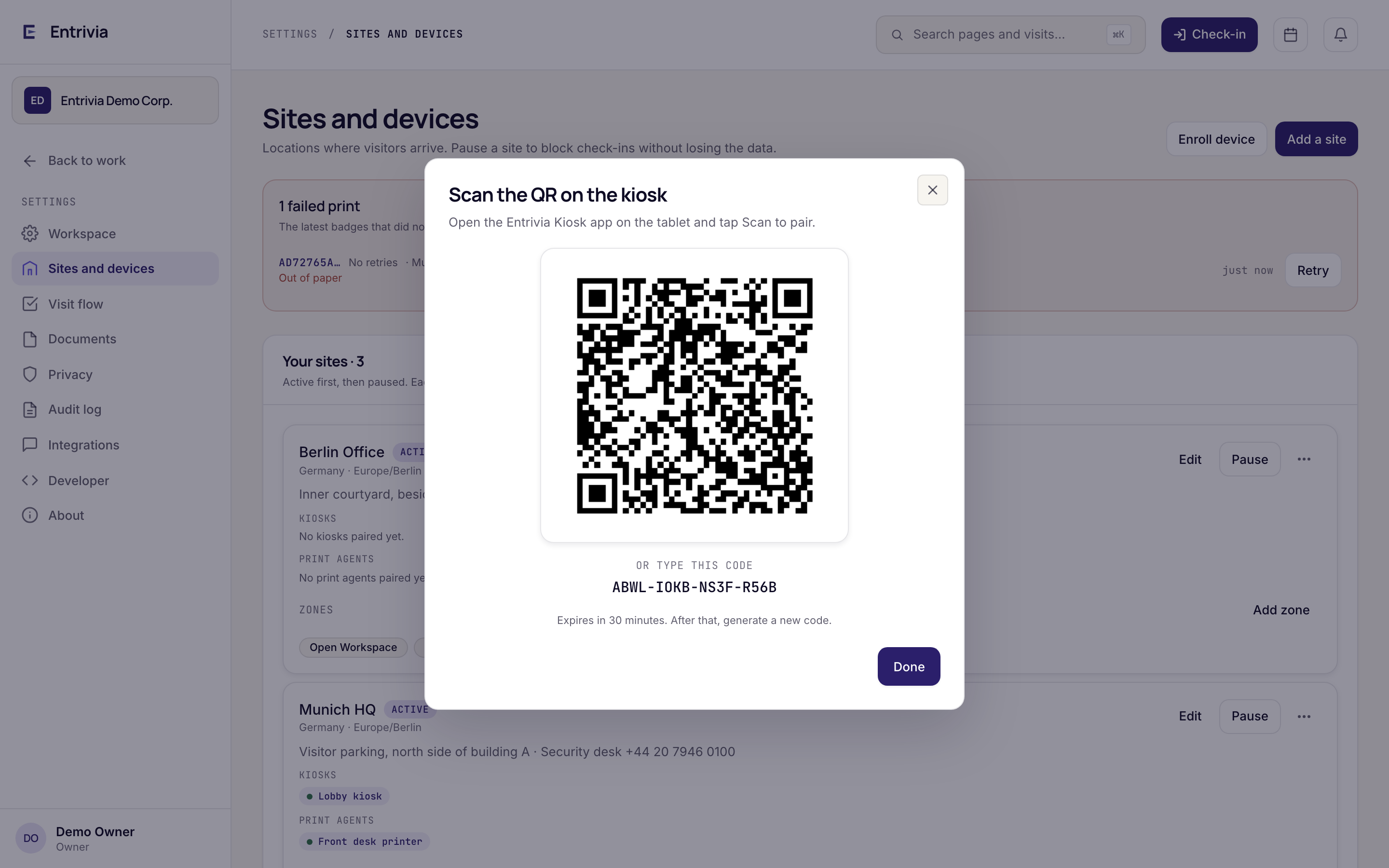
The enrolment code for a new kiosk Open the Entrivia Kiosk app on the tablet. A tablet that is not paired yet shows This kiosk is not set up yet. with a section For staff.
Select Scan and point the camera on the back of the tablet at the QR code in the portal. If the camera does not work, select Type code and enter the Setup code, the Server address and, if you like, the Site (optional) you expect.
The tablet asks Connect to this server? and names the address. Continue only if this is your company's Entrivia address, then select Connect.
Entrivia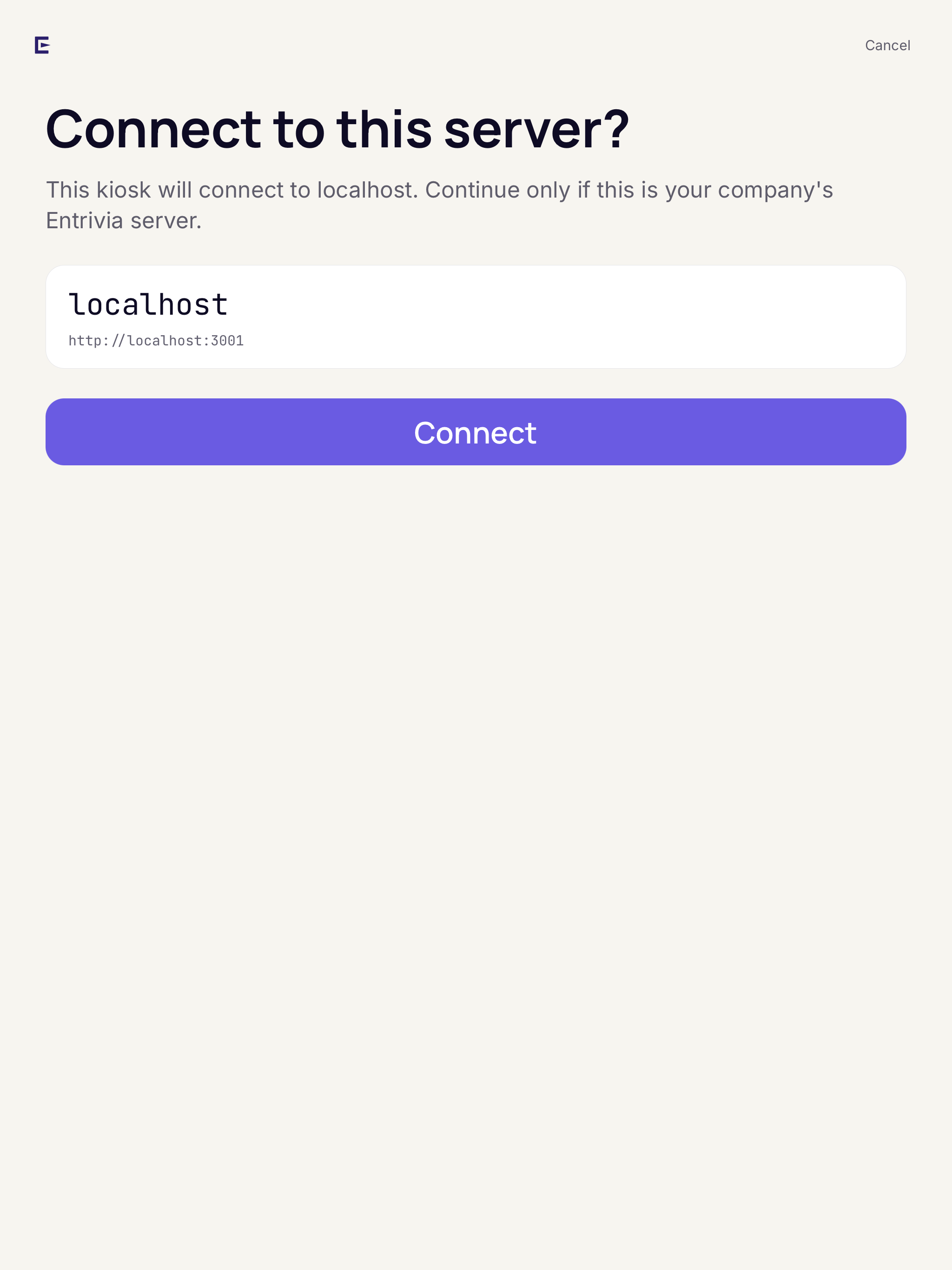
The kiosk's setup screen The tablet shows Check the site with the site the server paired it with. Select Finish setup if it is the right one. If you typed a different site, it says This is not the site you entered: select Use site only if the server's site is right after all, otherwise Cancel and create a code for the right site.
The kiosk now shows its start screen and the site's name. A site that is paused cannot get a new kiosk. How visitors use the kiosk is explained in The kiosk.
Kiosk status
Each kiosk appears as a pill on its site's row:
| Status | Meaning |
|---|---|
| Online | The kiosk reports in every 30 seconds. |
| Degraded | The kiosk is reachable, but its printer reports a problem such as Out of paper or Cover open. |
| Offline | Nothing has been heard from the kiosk for 90 seconds. Check its power and network. |
Pointing at the pill shows the printer state and when the kiosk was last seen. The Dashboard counts kiosks online per site.
Managing and retiring a kiosk
Select the kiosk pill to open Manage kiosk. You can change the Display name and the Zone, a free label such as "Lobby" that helps reception tell kiosks apart, and select Save changes. The panel also shows the device kind, app version, printer and last contact.
If a tablet is lost, stolen or replaced, select Decommission kiosk… and confirm with Yes, decommission. The kiosk loses its connection within seconds, wipes its pairing and returns to the setup screen. It disappears from the list; the audit log keeps its history.
Setting up a print agent
The print agent runs on a reception PC (macOS or Windows) and sends badges to a Brother QL label printer on the local network.
In the … menu on the site's row, select Enroll print agent (or Enroll device → Print agent at the top of the page), check the Site and select Generate code.
Entrivia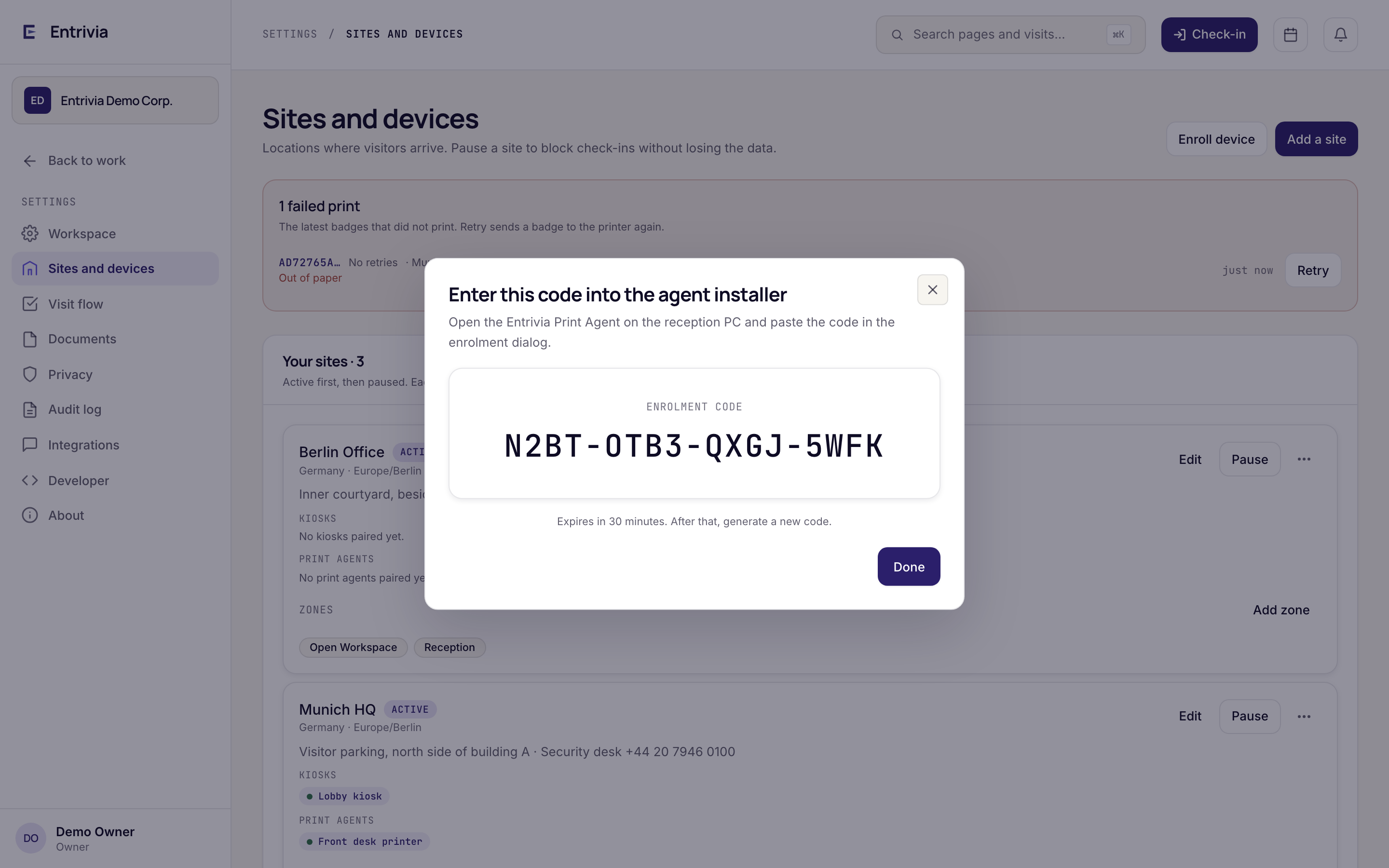
The enrolment code for a print agent Open the Entrivia Print Agent on the reception PC, enter the server address and the code. The code expires after 30 minutes.
In the agent's options, enter the printer's IP address and run a test print.
One print agent serves one site and one printer. Two desks need two agents. The agent then sits quietly in the system tray and stores no visitor data. Its status pill and Manage agent panel work like a kiosk's, including Decommission agent….
A new print agent has no name: it appears as New print agent followed by a short code, and reads Not connected yet until it first reports in. Give it a Display name in Manage agent, such as "Front desk printer", so reception can tell the agents apart.
Failed prints and how to retry them are covered in Badges and printing.