Setting up a kiosk
Connect a tablet to your site with the code from the portal.
A kiosk belongs to exactly one site. Setting one up takes two people or two moments: an admin creates a one-time code in the portal, and someone at the tablet enters it. The portal side is described in Kiosks and print agents.
Before you start
- Your operator or IT team installs the Entrivia Kiosk app on the tablet.
- Place the tablet upright or sideways where visitors pass it, with power connected; the kiosk turns with it. The kiosk is meant to run all day.
- On an iPad, keep the kiosk on screen: turn on Guided Access under Settings → Accessibility, open the Entrivia Kiosk app and triple-click the top button (or the Home button) to start it. Your IT team can instead lock the iPad to the app with single-app mode in its device management, or allow the app (
eu.entrivia.kiosk) Autonomous Single App Mode (a ready profile isapps/kiosk/profiles/entrivia-kiosk-single-app-mode.mobileconfigin the Entrivia repository): the kiosk then locks the iPad itself once it is set up, and unlocks it when it is removed in the portal. From iPadOS 27 the app otherwise runs in a window that visitors could resize or leave. - The tablet needs a working network connection. The kiosk works online only; a mode that keeps working without a network is planned.
Connecting the tablet
When the app has no connection to your server yet, it shows "This kiosk is not set up yet." to visitors, with a note to go to reception. Below it, under For staff, are the setup options.
- In the portal, an admin opens Settings → Sites and devices, chooses Enroll kiosk in the site's … menu, and then Generate code. A dialog shows a QR code and a typed code. The code works once and expires after 30 minutes.
- On the tablet, choose Scan and point the camera on the back of the tablet at the QR code in the portal. If the camera is not available, choose Type code and enter the Setup code and the Server address (it must start with https). Site (optional) takes the site's name as the portal shows it, so the tablet can warn you if the code belongs to another site.
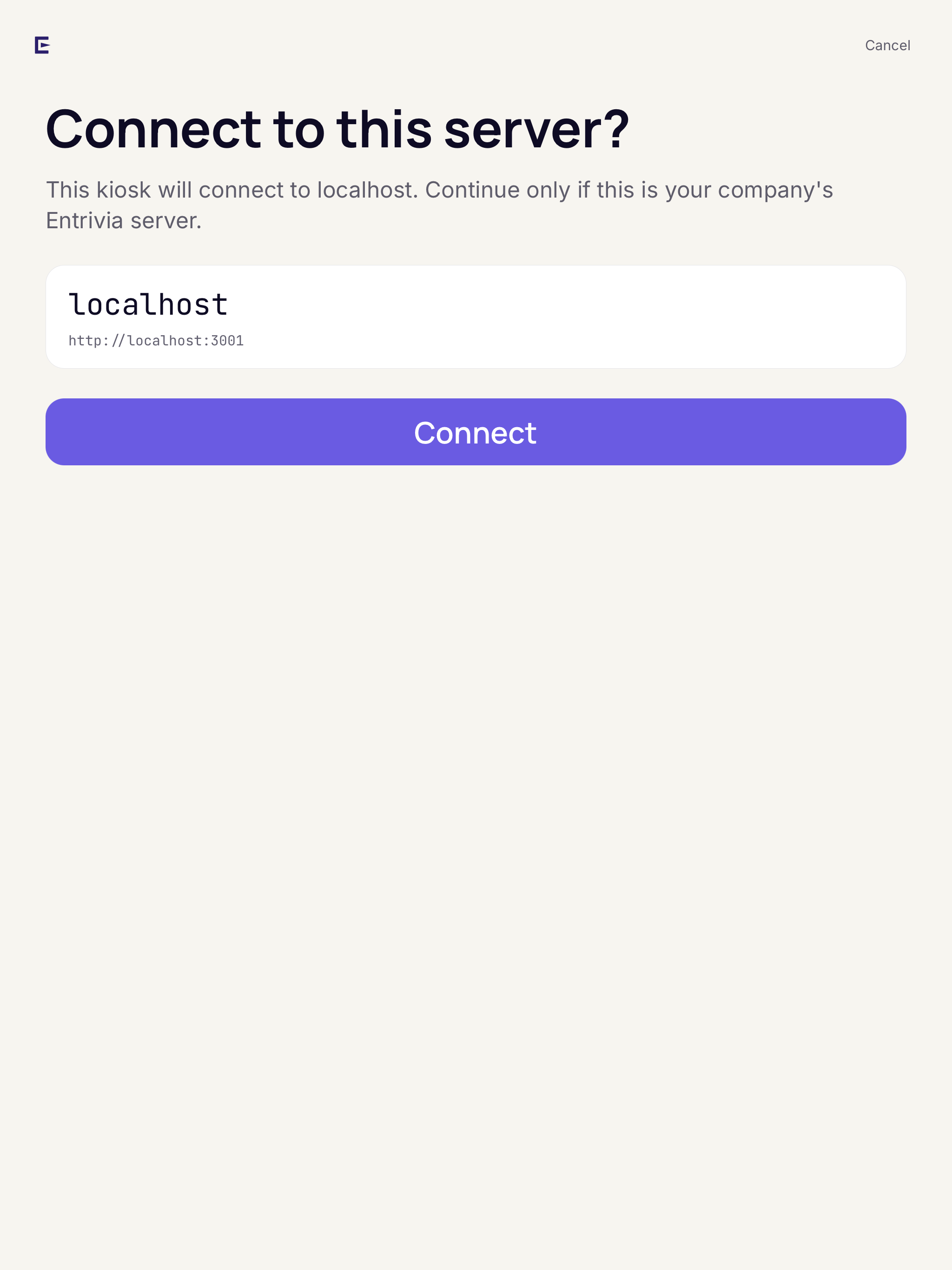
- The tablet asks "Connect to this server?" and shows the server's address. Continue only if this is your company's Entrivia server, then choose Connect.
- Under Check the site the tablet shows the site the server paired it with. If it is the right one, choose Finish setup. If you typed a different site, the tablet says "This is not the site you entered"; choose Use site only if that site is right.
- The kiosk shows its start screen. The site's name appears in the header, and the kiosk shows up as Online at the site in the portal.
If the tablet reports that the code was not recognised, has expired or was already used, generate a new code in the portal and try again. Choosing Cancel on Check the site uses up the code: remove the new kiosk in the portal and generate a new code.
Status in the portal
On the Sites page and, for admins, under Settings → Sites and devices, each kiosk shows as Online, Degraded or Offline. Degraded means the kiosk is running but reports a printer problem. Offline means the kiosk has not been heard from for about 90 seconds; check its power and network.
A lost or replaced tablet
If a tablet is lost, stolen or retired, an admin opens the kiosk in the portal, chooses Decommission kiosk… and confirms with Yes, decommission. The tablet loses its access at once, wipes its connection and returns to the setup screen. A replacement tablet is set up with a new code.