Walk-ins and deliveries
Check in visitors who have no invitation, couriers and contractors.
Not everyone arrives with an invitation. For people who walk in, the Identify step of Check-in has three cards under Walk-in. Pick the one that matches why the person is here.
| Card | Use it for | What changes |
|---|---|---|
| Meeting a host | Someone who came to see a member of staff | Normal check-in with all steps |
| Delivery | A courier or supplier dropping something off | No NDA and no photo; a short lobby-only pass |
| Contractor | An on-site service provider or vendor | Normal check-in with all steps |
Checking in a walk-in
- Choose Check-in in the top bar and pick the walk-in card.
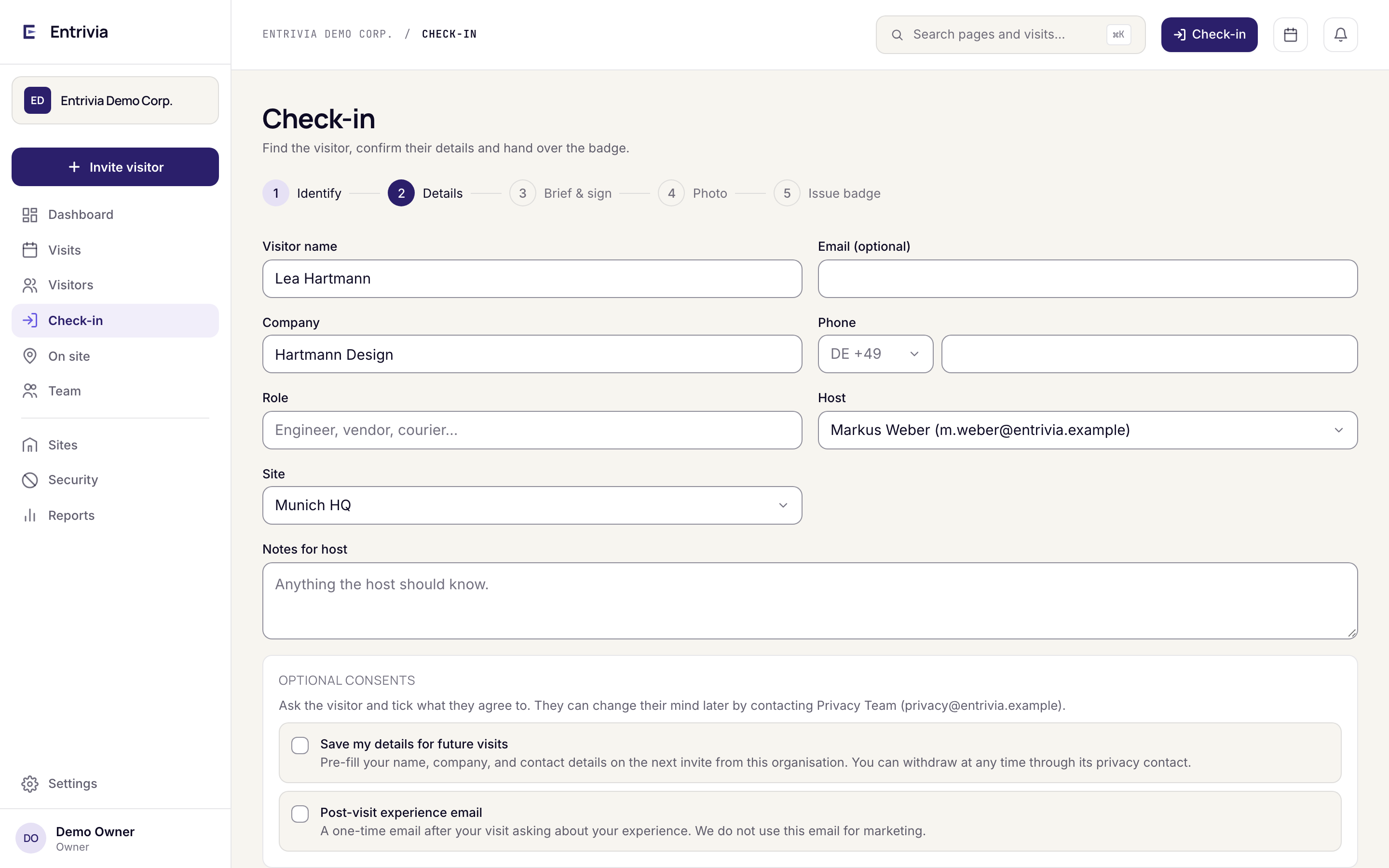
- On Details, enter the Visitor name and Company. Choose the Host the person came to see and the Site they are at. Email (optional), Phone and Role can stay empty.
- Continue through the remaining steps as for an invited visitor: Checking in an invited visitor.
Returning visitors
When you type a name or email on Details, two lists can appear. Already invited today shows matching invitations; choose Use invite if the person was invited after all, and the check-in continues as an invited visit. Returning visitors lists people who were here before; Prefill · n visits fills in their details from earlier visits. Only visitors who agreed to have their details saved appear in this list.
Note: A walk-in without an email address is a one-off record. Nothing is saved for a next visit, and nothing is filled in from earlier visits. The same is true for shared addresses such as a reception or info mailbox; the screen tells you so.
Deliveries
A delivery gets a pass that is valid for 30 minutes and only for the lobby. The pass shows "Lobby only, 30 minutes" under Access. Because the courier is only dropping something off, the flow asks for no signature and no photo.
Blocked visitors
Every visitor, invited or walk-in, is checked against the blacklist when the check-in starts. If there is a block, you see the message "Security has been notified. Please ask the visitor to wait at reception." The visitor is not told why. Stay calm and friendly and wait for security; see The blacklist.
Optional consents
Optional consents on Details lists what your workspace may ask, for example whether the visitor wants their details saved for the next visit. Ask the visitor and tick only what they agree to. A visitor can change their mind later through your company's privacy contact.