Attachments
Send parking maps, safety guides and agendas with an invite, from a shared library or for one visit only.
Attachments are reference material that travels with an invite so the visitor arrives prepared: a parking map, a safety guide, an agenda. They are not signed. Documents a visitor signs, such as an NDA, are managed under Documents.
The library
Owners and admins keep reusable files under Settings → Documents, on the Attachments tab.
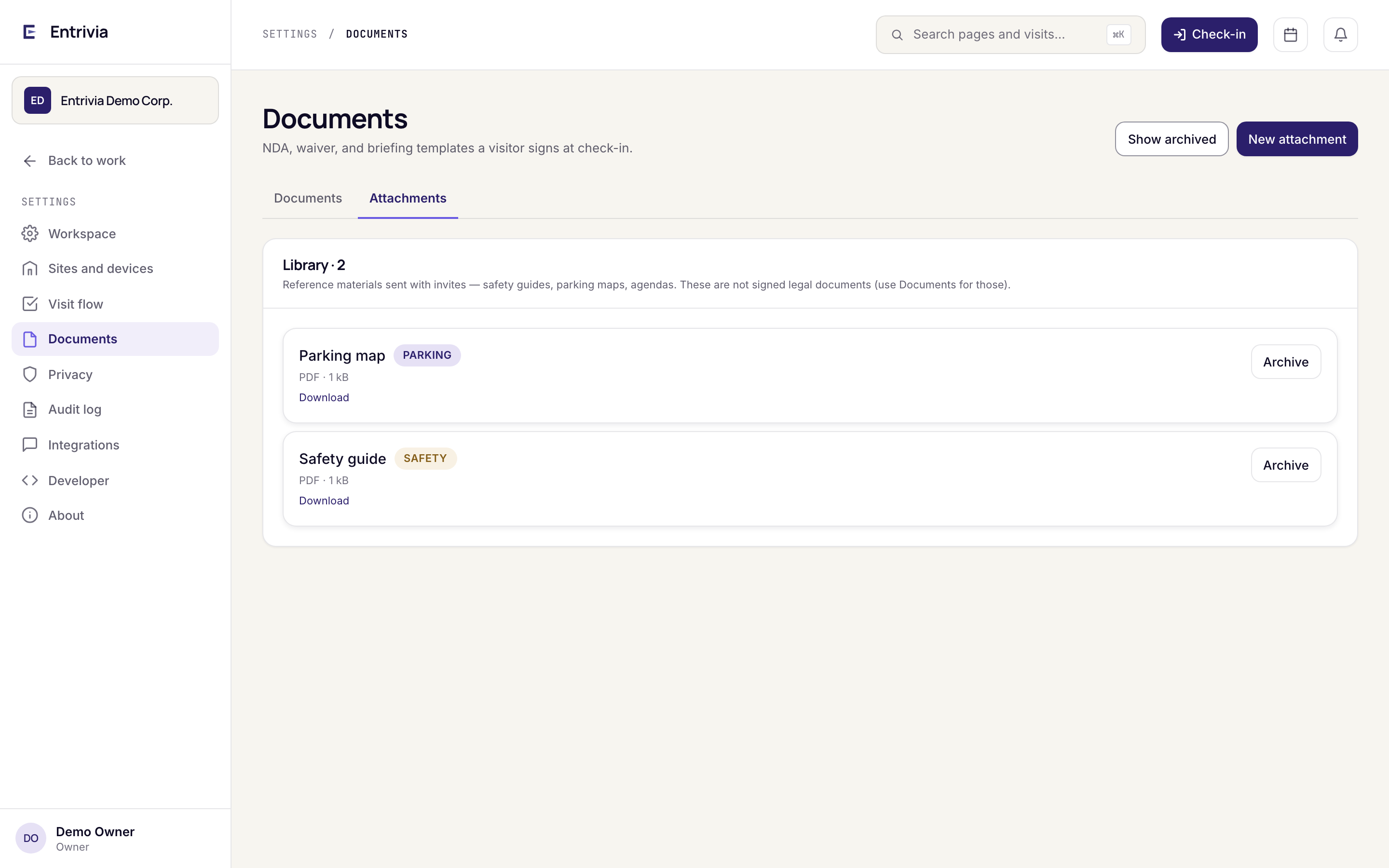
- Click New attachment.
- Drop a file into the dialog or click to choose one.
- Pick a Category (Safety, Parking, Dress code, Building info or Other), give it a Name and, if you like, a description.
- Click Save attachment.
| File type | Largest size |
|---|---|
| PDF, plain text | 5 MB |
| PNG, JPEG, WebP images | 25 MB |
Office files and videos are not accepted; save them as PDF or images first.
Each file in the library shows its category, its type and its size, for example "PDF · 120 kB".
Archive removes a file from the pickers. Visits that already carry it keep it. Show archived lists archived files again.
Adding attachments to an invite
There are three ways a file reaches a visitor:
- From the library. On the invite form, under Attachments (optional), tick the files to include. They apply to all visitors on the invite. Tick Must be confirmed when the visitor must confirm they have read the file.
- For this visit only. After you send the invite, the form offers Add files for this visit. Click Add file to upload something that belongs to this one visit, such as a visa form. These files do not go into the library.
- From the visitor category. A visitor category can name Default attachments, for example the safety guide for every contractor. Every invite for a visitor in that category gets them, without confirmation. A file you also tick on the invite form is added only once, without confirmation too.
What the visitor sees
During pre-arrival the visitor finds the files under Reference materials and can open each one. Where acknowledgment is required, they tick I've reviewed. The tick is recorded, but it is not a signature.
Reception and the host see the files on the visit record under Materials shared.
Note: Files added for a single visit are deleted automatically 30 days after the visit ends. Library files are not deleted automatically; they belong to the workspace, not to a visitor.