Changing roles and permissions
Change a role, grant extra permissions, assign sites and deactivate an account.
All of this happens on Team in the rail. Each row shows the person's name with the number of extra permissions they hold, their email, their role, their sites and a … menu (Options for name) with everything else you can do for that person. Who may change what is deliberately strict, so that nobody can give themselves more rights.
Changing a role
On the person's row, select Change role and pick the new role. The list describes each role in one line. Entrivia asks you to confirm with Change role; the person's access changes as soon as you do.
Only the owner, or someone the owner has given the Manage roles permission, can do this. Nobody can change their own role or the owner's. Making someone an Auditor removes all their extra permissions at the same time, because an auditor may only read.
Granting extra permissions
Open the row's … menu and select Extra permissions. A list opens with one switch per permission and a sentence on what it allows.
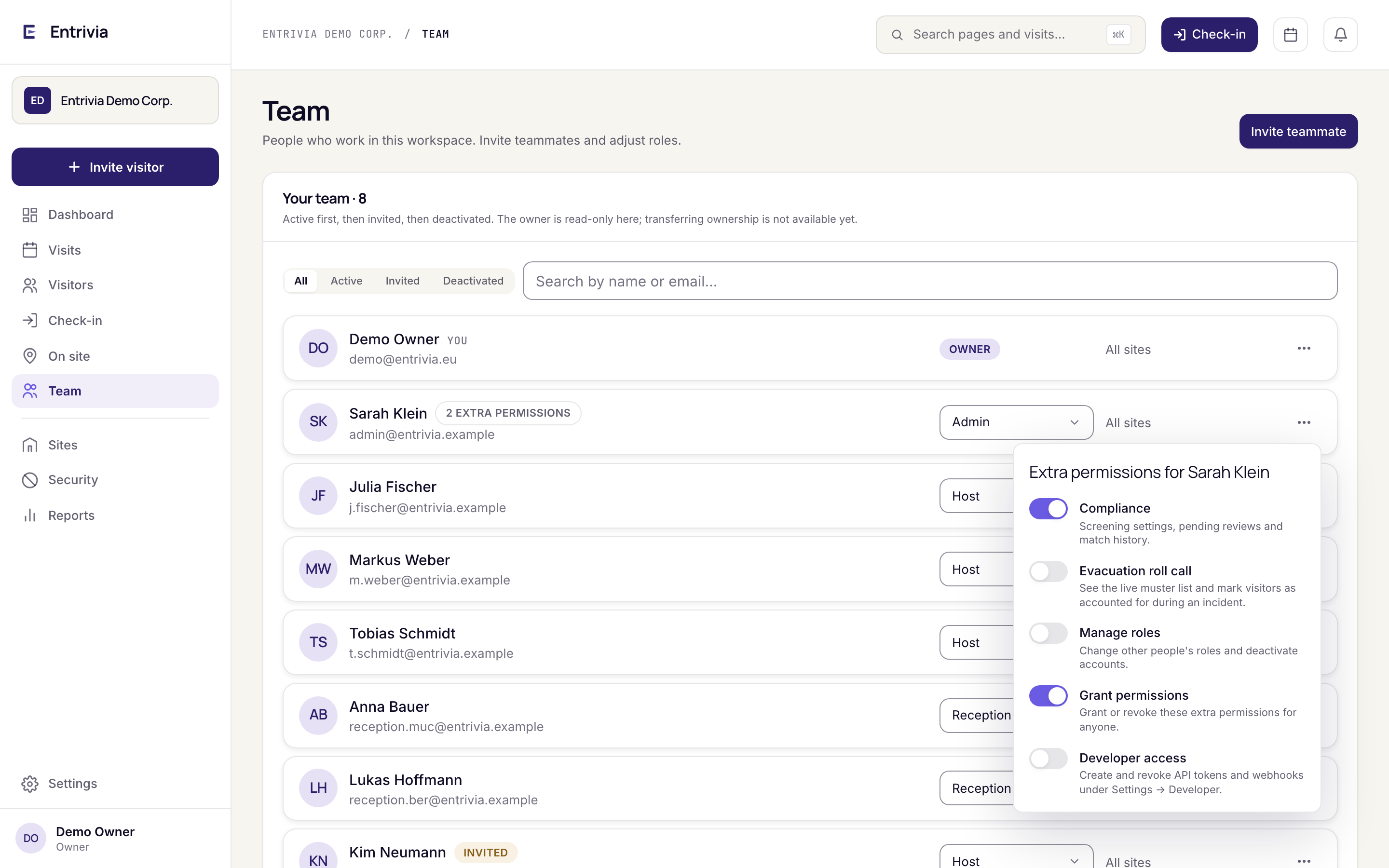
- The owner, and anyone holding Grant permissions, can switch permissions on and off for others.
- Nobody can grant a permission to themselves. Switching one of your own off is allowed.
- Auditors hold no permissions; their row explains why.
- Your own row and deactivated rows are read-only.
The permissions themselves are described in Roles.
Assigning sites
Owners and admins select Sites in the row's … menu, tick the sites the person works at, then select Save changes.
Site assignments decide who is alerted when a host does not answer about an arriving visitor: Entrivia tells the reception staff of that site first, then its admins. Someone with no site assigned shows All sites and is alerted for every site. Wardens with Evacuation roll call are likewise limited to their assigned sites. Assigning sites does not hide anything in the portal; roles still decide what a person sees.
Deactivating an account
When someone leaves, select Deactivate in the … menu on their row. This needs the owner or the Manage roles permission, and nobody can deactivate themselves or the owner.
Deactivation takes effect at once:
- the person is signed out on every device and cannot sign in again,
- their passkeys are removed,
- a pending invitation of theirs is cancelled.
The account itself stays, marked Deactivated, so the history of the visits they hosted and the actions they took remains readable.
The owner
The owner's row is read-only on this page. Transferring ownership to another person is not available yet; if the owner leaves the company, ask your operator.
Every change is recorded
Role changes, grants, site assignments and deactivations are all written to the audit log with the person who made them. View audit trail on the Team page takes you there; see Reading the audit log.