Reports and exports
Create the visit log or the compliance report as a file, download it, and know how long it is kept.
Auditors, works councils and data protection officers ask for evidence: every visit of the year, or how many visitors signed the NDA. The Reports page creates that evidence as a spreadsheet file (CSV) you download. Owners, admins and auditors can create both reports; security creates the compliance report only, because the visit log names people.
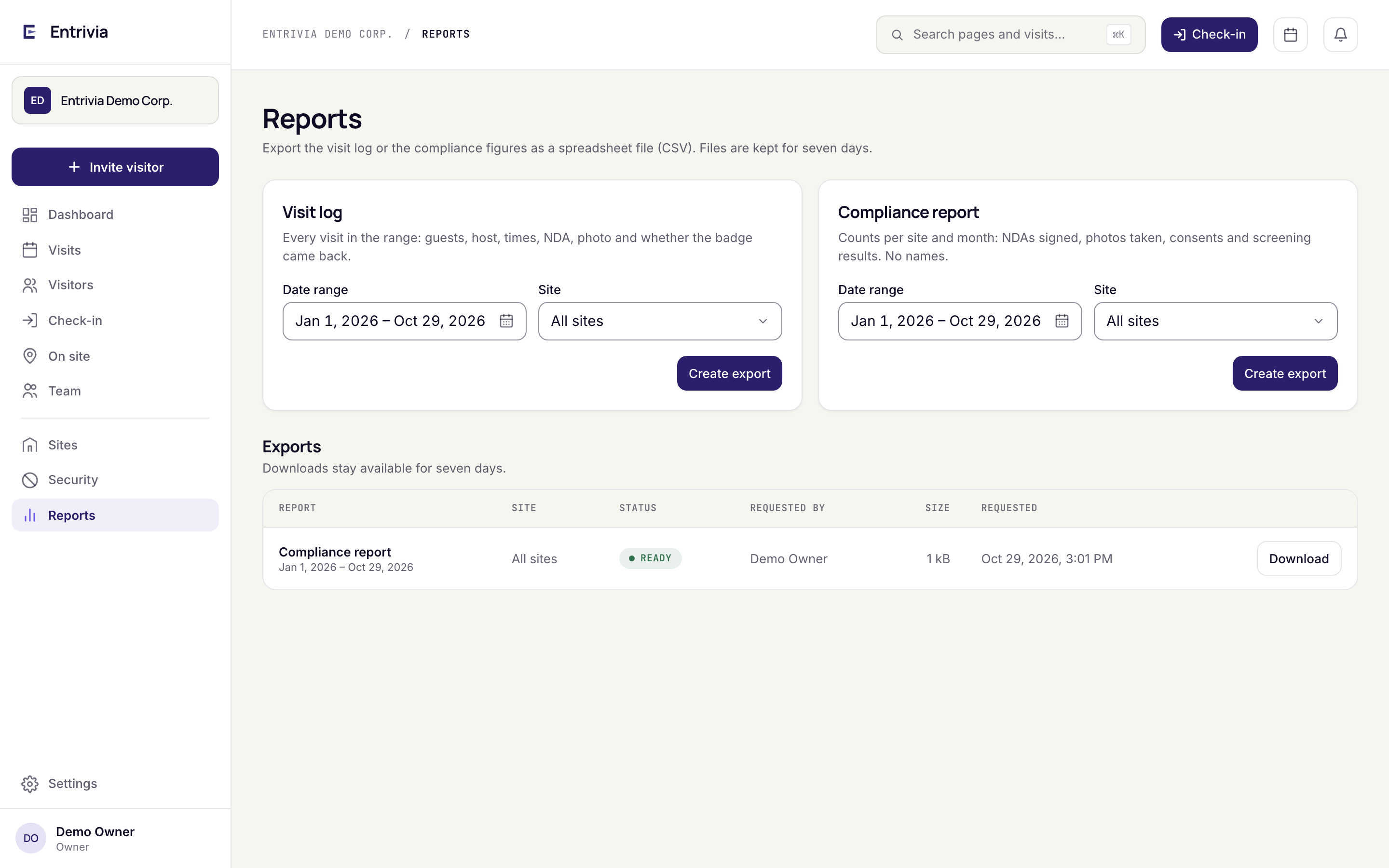
The two reports
| Report | What the file contains |
|---|---|
| Visit log | One line per visitor and visit in the date range: the visit, the visitor's name, email and company, the host, the visitor category, the status, planned and actual times, whether the NDA was signed, a photo taken, the host's notification seen and the badge returned, and how the visit came in. |
| Compliance report | Counts per site and month: visits, visitors, check-ins, NDAs signed, photos taken, consents given and withdrawn, and sanctions screening results. No names. The screening columns stay empty for people who may not see screening. |
Days count in each site's own time zone, so a site abroad reports its own calendar days. The column headings are in your language. What the portal hides stays out of the file too: a confidential visit has no title and no visitor names, and a visitor whose data was deleted reads [redacted].
Creating a report
- Open Reports in the rail.
- In the card of the report you need, pick the Date range. It starts on the first day of this year.
- Pick a Site, or keep All sites.
- Select Create export.
The export appears in the list below with the status Waiting, then Creating, then Ready. Large ranges take a while; you can leave the page and come back. Only one export runs at a time; a second one waits for the first.
Downloading
When the status reads Ready, select Download. Point at the button to see until when the file is available. Files are deleted seven days after they are ready, and the row disappears with them; create the report again if you need it later.
If an export reads Failed, the row says why. Too many rows for one file means the range holds more than a million lines: choose a shorter range or one site.
Who sees what
Everyone who may open Reports sees the exports listed there with who requested them; security sees the compliance exports only. Each request, completion and failure is recorded in the audit log, so you can show who took which data out of Entrivia and when.
Note: A downloaded file is outside Entrivia's deletion rules. Keep it only as long as you need it, and store it where your company keeps other personal data.