Finding your way
The rail on the left, Settings, the top bar, the Dashboard and the setup checklist.
The portal has a rail on the left with the pages you use every day and a top bar for the things you need all the time. What the rail shows depends on your role: a host sees three entries, an admin nine in two groups, and pages a role cannot open never appear. Everything you configure rarely lives in Settings, behind one gear.
The rail
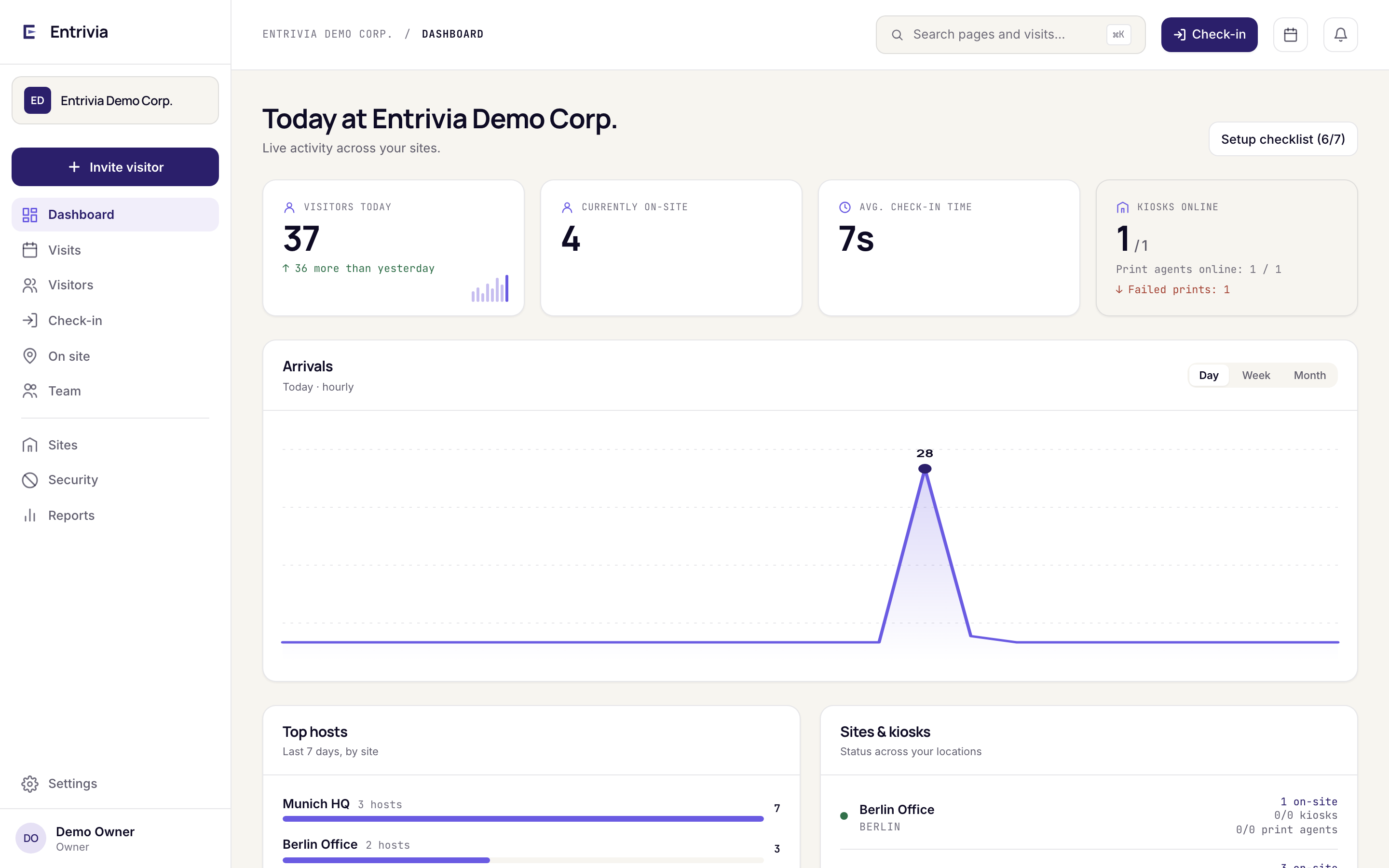
From top to bottom the rail shows the Entrivia logo, your workspace's name, the Invite visitor button (for roles that may invite), your pages in two groups, Settings and your name. A thin line separates the daily work above from the overview pages below.
| Role | Daily work | Overview |
|---|---|---|
| Owner, Admin | Dashboard, Visits, Visitors, Check-in, On site, Team | Sites, Security, Reports |
| Host | Dashboard, Visits, Team | |
| Reception | Check-in, On site, Visits, Visitors, Dashboard, Team | Sites, Security |
| Security | On site, Visits, Visitors, Team | Sites, Security, Reports, Audit log |
| Auditor | Dashboard, Visits, Visitors, Team | Security, Reports, Audit log, Compliance |
Fire wardens (the extra permission Evacuation roll call) also get On site, whatever their role.
- Dashboard is the overview of the day, described below.
- Visits holds every visit in four tabs: Today (arriving today), Upcoming (invitations for later days), Recurring (series, for owners, admins and hosts) and History (past visits). Security sees Today and History only. Drafts beside the tabs opens your saved invitations. See The visitors list and The invites list.
- Visitors lists everyone who has visited, with how often and when; see The visitor directory.
- Check-in is the reception desk; see Checking in an invited visitor.
- On site shows who is in the building now and holds the muster list during an evacuation; see On site and evacuation.
- Sites shows every site with its kiosks and badge printers; see The Sites page.
- Team lists everyone who works here, with their role and sites; owners and admins manage the team there. See Team and roles.
- Reports creates the visit log and the compliance report as files to download; see Reports and exports.
- Security holds the blacklist and, for people who work with sanctions screening, the Screening tab.
- Audit log is the record of every change. Owners and admins find it in Settings instead.
- Compliance opens the Screening tab of Security; auditors have it in their rail because they have no Settings for it.
Your name at the bottom opens a menu with Account (your personal settings, see Your account), About Entrivia, the language of the portal and Sign out. About Entrivia shows which version runs, the install ID, links to this handbook and to support, and the licenses; mention the version when you ask for help.
Settings
Settings at the bottom of the rail switches the rail to the settings sections; Leave settings returns to the page you came from. Selecting your workspace's name at the top opens Workspace directly. Only roles with a section besides About see Settings; everyone else opens About from the menu under their name.
| Section | What you set there | Who |
|---|---|---|
| Workspace | Name, language, time zone, privacy contact, branding, staff email domains | Owner, Admin |
| Sites and devices | Sites, zones, kiosks, print agents, failed prints | Owner, Admin |
| Visit flow | Visitor categories, visit defaults, badge design, pre-issue requirements, custom visitor fields, screening settings | Owner, Admin; the screening settings also people with Compliance |
| Documents | NDA and briefing templates, and the attachment library | Owner, Admin, Auditor |
| Privacy | Consent purposes, visitor requests, install statistics | Owner, Admin |
| Audit log | The record of every change | Owner, Admin |
| Integrations | Connected services, calendar sync, assistant | Owner, Admin |
| Developer | API tokens for AI agents and other tools | Owner, and people with Developer access |
| About | Version, install ID, help and support links, licenses | Everyone |
The top bar then reads Settings / and the section, so you always know where you are.
The top bar
- The search field finds pages and visits. Type part of a page name, for example "team", and Go to Team appears; press Enter to open it. Pages you cannot open are never offered. Anything else searches the visits by name, company, email or badge number. ⌘K (Ctrl+K on Windows) jumps to the search from anywhere.
- Check-in opens the reception check-in for owners, admins and reception. It is always one click away because reception uses it many times a day.
- The calendar button beside the bell opens the Calendar from any page, for every role except security.
- The bell shows notifications meant for you, such as your visitor arriving or a badge that did not print; see The notification bell.
On a narrow window the rail shrinks to icons; point at one to see its name. On a phone the rail hides behind the menu button at the left of the top bar and closes again when you pick a page.
The Dashboard
The Dashboard, titled "Today at" and your workspace name, shows what is happening today across your sites:
| Figure | What it tells you |
|---|---|
| Visitors today | Visits that arrived today, and how many more or fewer than yesterday. |
| Currently on-site | Visitors checked in and not yet checked out. For roles that have On site, the figure opens it. |
| Avg. check-in time | How long check-in takes, split by reception, pre-arrival and kiosk, compared with the week before. |
| Kiosks online | Whether your lobby tablets are reachable. Underneath, Print agents online counts the services that drive your badge printers and Failed prints the badges that could not be printed. The figure appears once a kiosk or print agent is enrolled. Hosts and auditors do not see it. |
Arrivals charts today's arrivals by hour. Week and Month switch it to arrivals per day for the current week or month, and Day goes back. Until the first visitor of the day arrives, the day view says No arrivals yet today.
Top hosts lists who received the most visitors in the last seven days. Per-person numbers are off by default, because in many countries they count as monitoring employees; while they are off you see totals per site. An admin can switch them on under Settings → Visit flow, see Workspace settings.
Sites & kiosks shows each site with the people on site, its kiosks and print agents and any failed prints. Owners and admins also see Enroll kiosk →, which opens the enrolment dialog on Sites and devices.
"Today" always means the calendar day at the site, not at the server, so a site in another time zone counts its own day.
The figures update on their own every 30 seconds. Every page in the portal also brings its lists up to date when you return to the browser tab, so there is no reload button anywhere.
The setup checklist
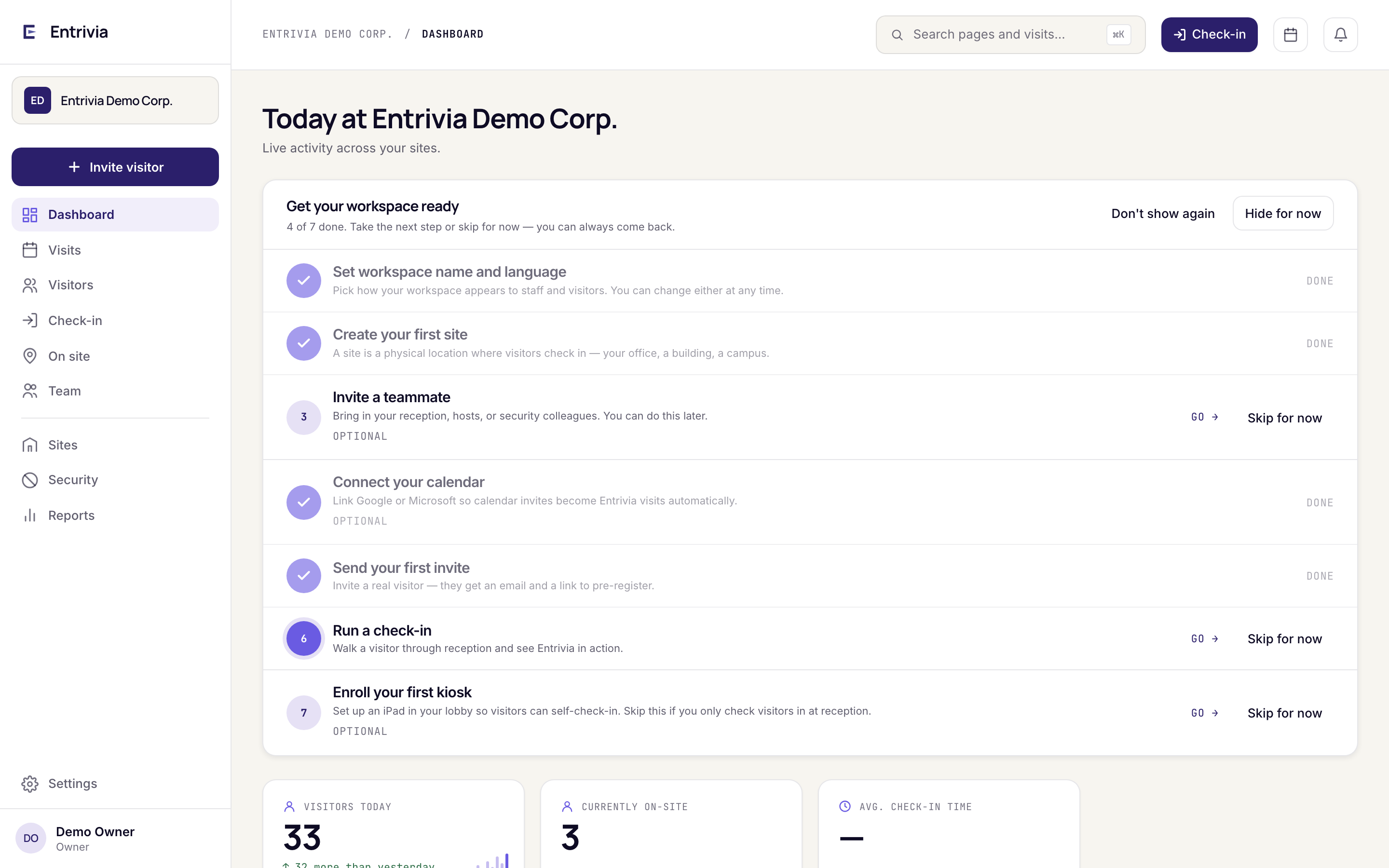
A new workspace shows the checklist Get your workspace ready as a card at the top of the Dashboard. It lists the steps to your first real visitor:
- Set workspace name and language
- Create your first site
- Invite a teammate (optional)
- Connect your calendar (optional)
- Send your first invite
- Run a check-in
- Enroll your first kiosk (optional)
Each step ticks itself when you do the real thing, for example when the first real visitor is checked in. Go → takes you to the page for that step, and Skip for now marks a step as done without doing it.
- Hide for now folds the card away until you close the browser tab. While it is folded, Setup checklist in the page header shows how many steps are done and opens the card again.
- Don't show again removes the card for good; Setup checklist in the page header still opens it.
Once every required step is done, the card no longer appears. Only owners and admins see the checklist.