Pre-arrival steps
The steps a visitor goes through on their phone before the visit, and which of them depend on your settings.
Pre-arrival is a short series of screens. Each step is saved when the visitor taps Continue, so they can stop at any point and pick up later from the same email link, which opens on the first step they have not finished. A progress list shows where they are; the visitor can tap an earlier step in it, and the phone's back button goes back one step.
The steps
| Step | What the visitor does | Shown when |
|---|---|---|
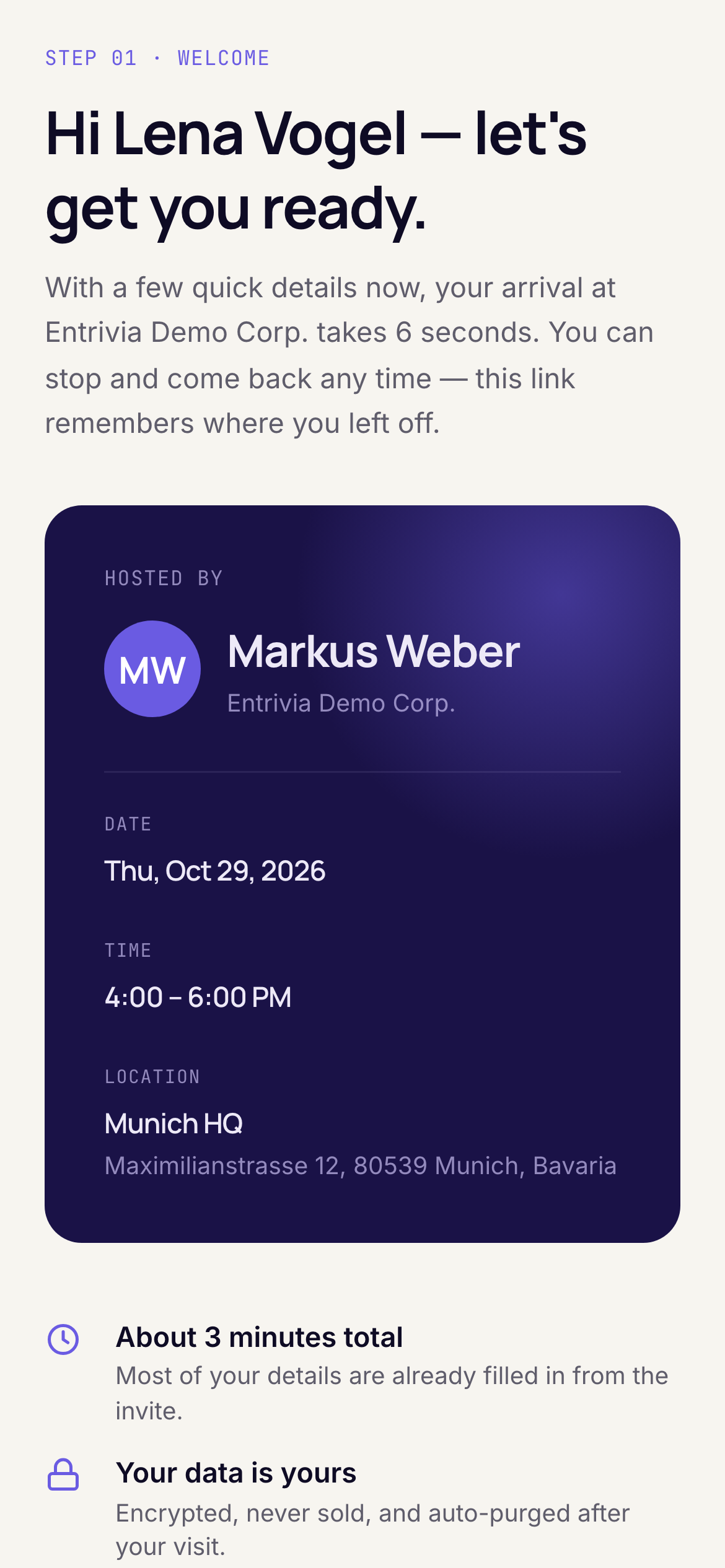
| Welcome | Sees who they are meeting, where (with the street address), when and why, plus any notes and reference materials from the host. Times are shown on the site's clock. | Always |
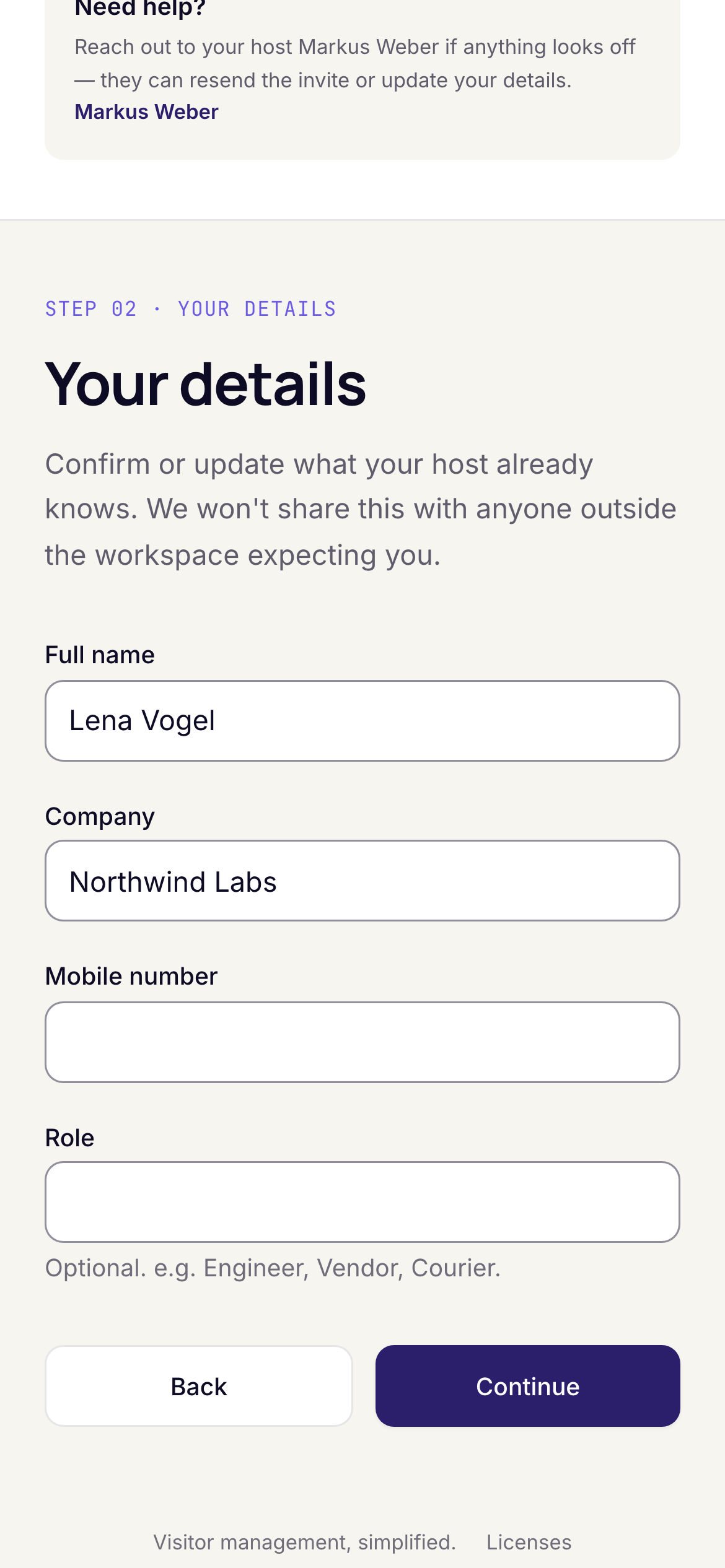
| Your details | Confirms or corrects name, company, mobile number and role. Can add an email if the host left it empty. | Always |
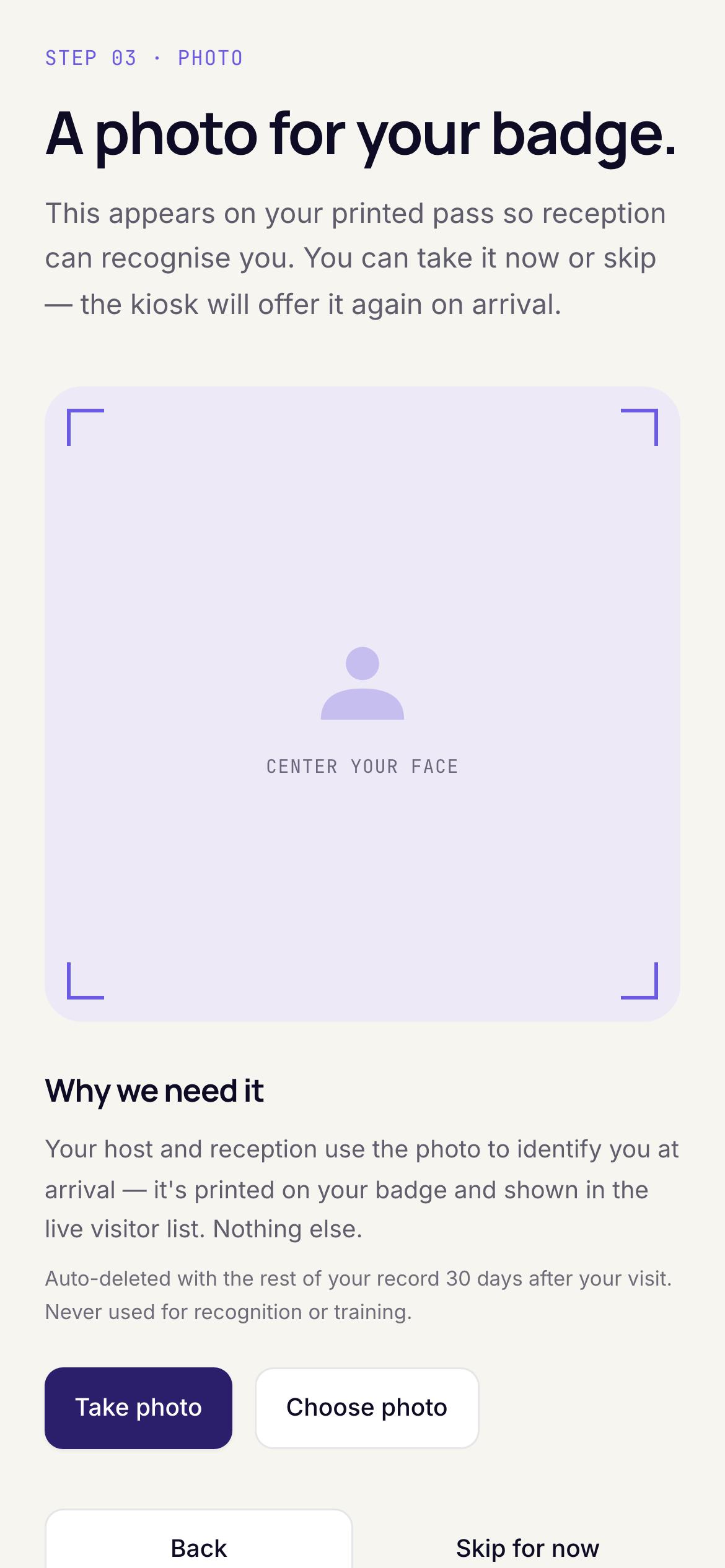
| Photo | Takes a photo or chooses one from the device (JPG, PNG or WebP, up to 5 MB), or taps Skip for now. | Always; skipping is not offered when the visitor's category requires a photo |
| Safety & accessibility | Adds a license plate, accessibility needs and an emergency contact. Everything is optional. | Always; the license plate only when your workspace collects plates |
| Additional details | Fills in your workspace's custom fields. | Only when custom fields exist |
| Safety briefing | Reads the site rules and confirms "I have read and understood these reminders." | Always |
| Materials | Opens the files you attached to the invite and ticks "I've reviewed" where you asked for it. | Only when the invite has attachments |
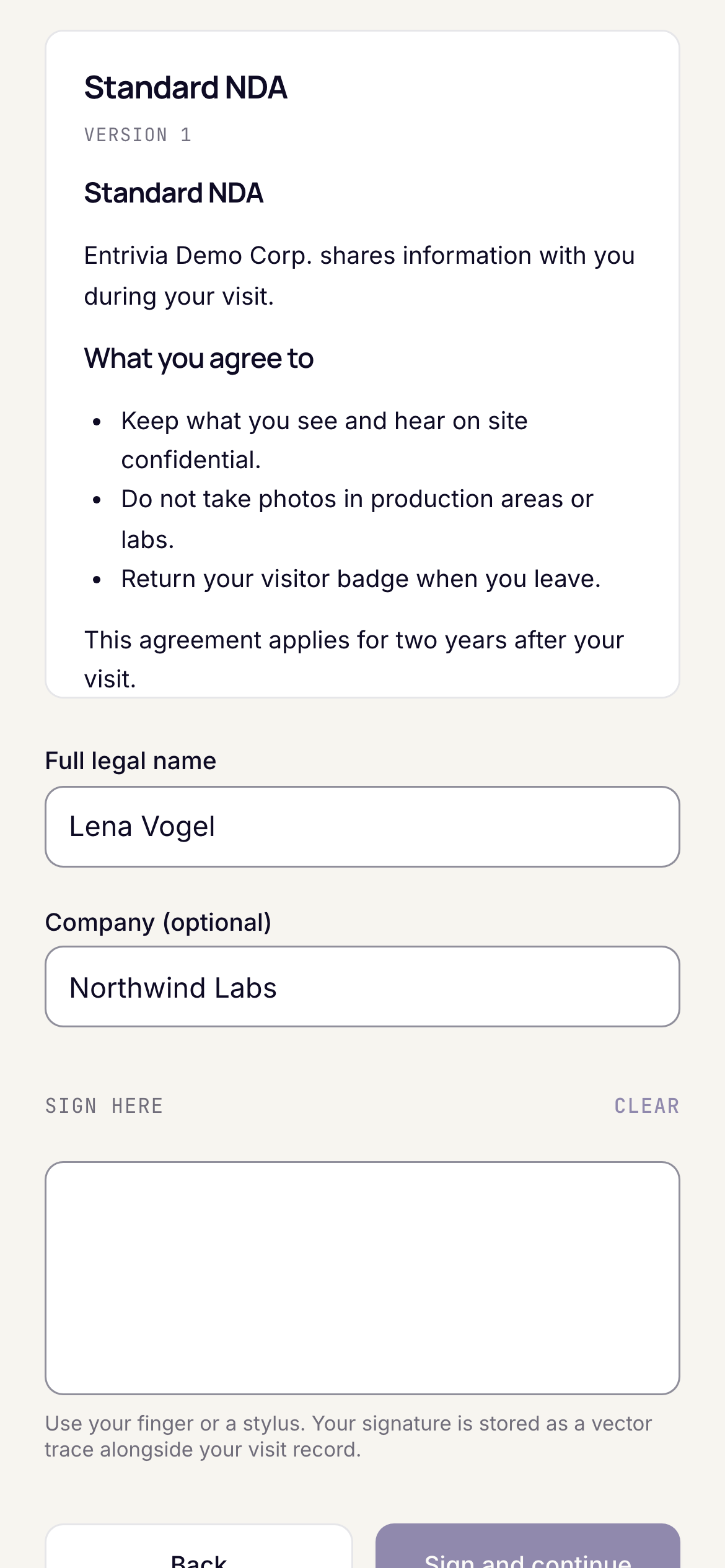
| NDA | Reads the NDA, enters their full legal name and signs with a finger, then taps Sign and continue. | Only when an NDA applies to the visitor |
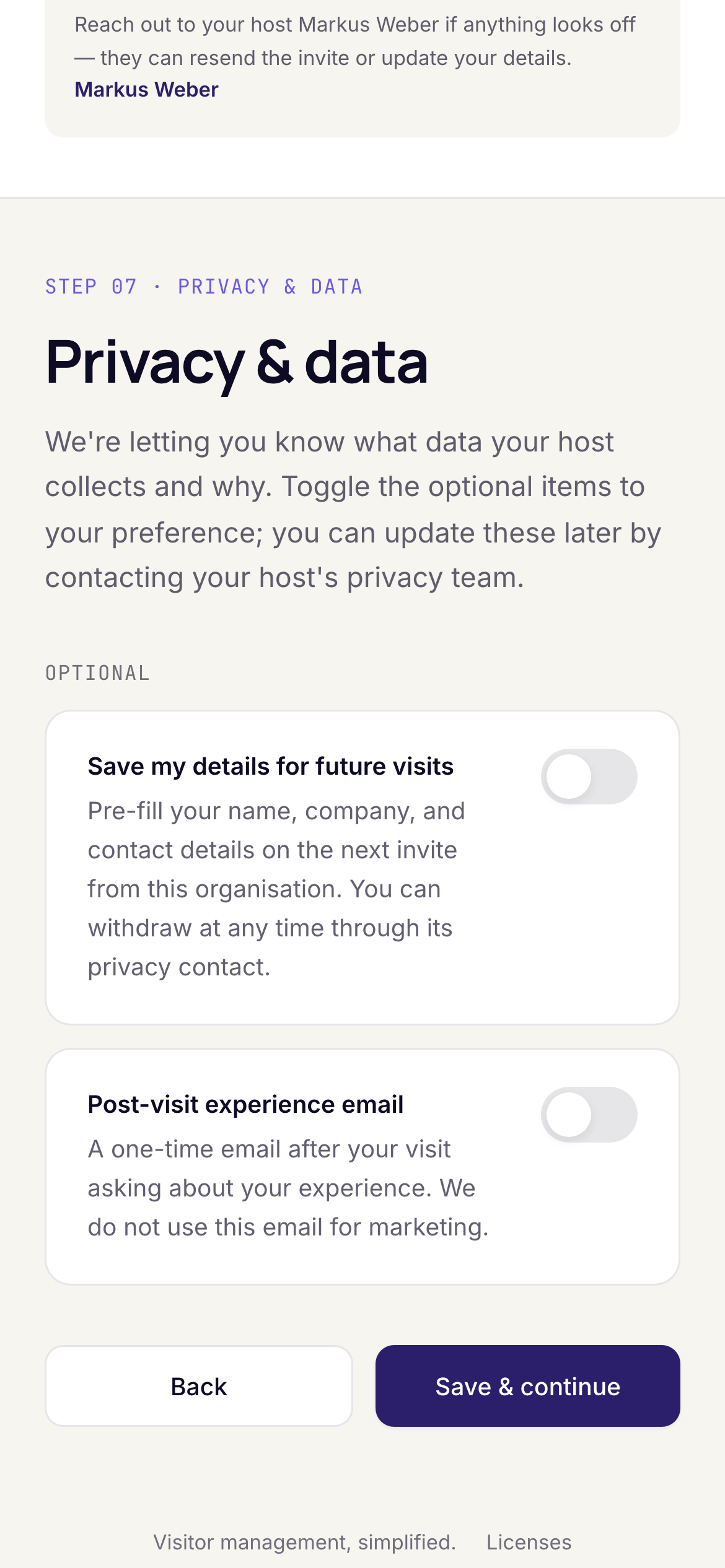
| Privacy & data | Reads what is collected and why, and switches the optional items on or off, then taps Save & continue. | Always |
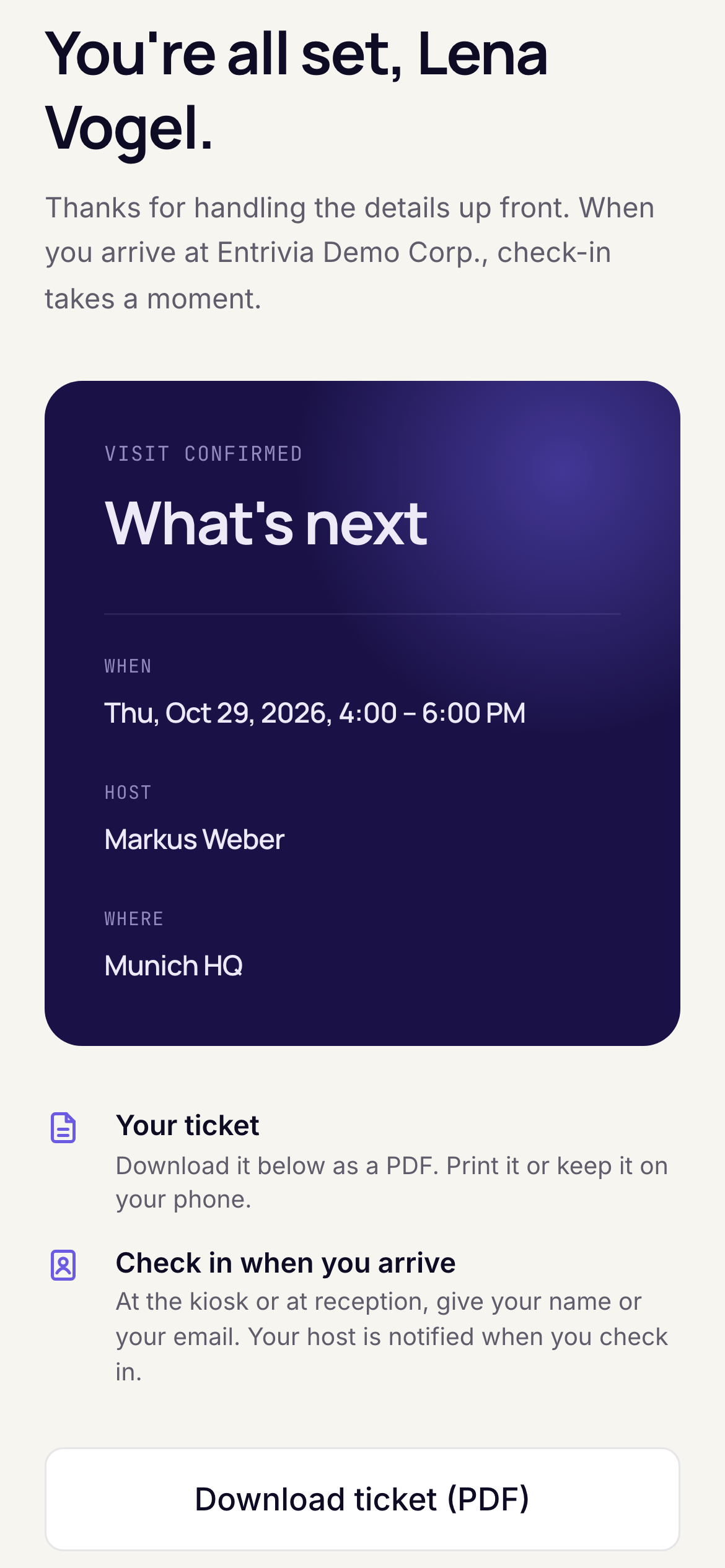
| Finish | Sees a summary of the visit and can download a ticket. | Always |
Details worth knowing
Email. A visitor who adds an email address on the details step receives a message with a confirmation link, and the step shows where it went with Send the email again. Only a confirmed address is used to recognise the visitor on later visits. If no more confirmation emails can be sent that day, the step says so; the visitor can still continue.
Country of residence. The details step asks for it only when your install screens visitors against sanctions lists. It is optional and used for that check only. See Sanctions screening.
Photo. The photo helps reception recognise the visitor. It is deleted automatically 30 days after the visit.
Safety briefing. The text comes from the briefing template set for the visitor's category, the site or the workspace. Without one, the visitor sees a short list of standard reminders. See Safety briefings.
NDA. A visitor who does not want to sign can tap I do not want to sign. They can still finish the other steps. On arrival they are asked to go to reception first, and they can only be checked in with the host's approval. See Held visitors.
Privacy & data. The required items are a notice: the visitor is informed, not asked. The optional items are switches, for example saving their details for the next visit. Which items appear, and whether they start switched on, is set under Consent purposes.
The finish screen
When the visitor taps Save & continue on Privacy & data, pre-arrival is complete: the host is told, and the visitor's chip on the invites list turns to Confirmed. The visitor then sees Finish.
The visitor can tap Download ticket (PDF). The one-page ticket shows the visit time, the site with its address, the host, the visitor's name and your company's logo. It is a handy summary to keep or forward to an assistant; at the site the visitor still checks in at reception or the kiosk.
Note: Passes for Apple Wallet and Google Wallet are planned. Until then the visitor's pass is issued at check-in.
Once the visitor has arrived, or the visit is cancelled or over, the answers can no longer be changed through the link.