Following progress
How hosts and reception see whether a visitor has pre-registered, and what they shared.
Hosts and reception do not have to wait for the visitor to show up to know whether they are ready. Entrivia shows each visitor's progress in three places.
The invites list
On the Upcoming tab of Visits, every row carries a chip for its visitor; on an invite with several visitors, it follows the first one. Awaiting means the email went out and pre-arrival is not finished; Confirmed means the visitor completed it. The filter Awaiting confirmation lists everyone who still has steps to do, which is useful the day before a busy morning. See The invites list.
The notification bell
When one of your visitors finishes pre-arrival, the bell in the top bar shows a new entry: "Your visitor … has completed pre-arrival." It goes to the visit's host. See The notification bell.
The visit record
Open Visits and click the visit to see its side panel. What the visitor entered during pre-arrival appears under Pre-arrival info: License plate, Emergency contact and Accessibility note, plus any Custom fields. Signed documents are listed under Documents signed, consents under Consents granted, and the Timeline shows when pre-arrival started and was completed.
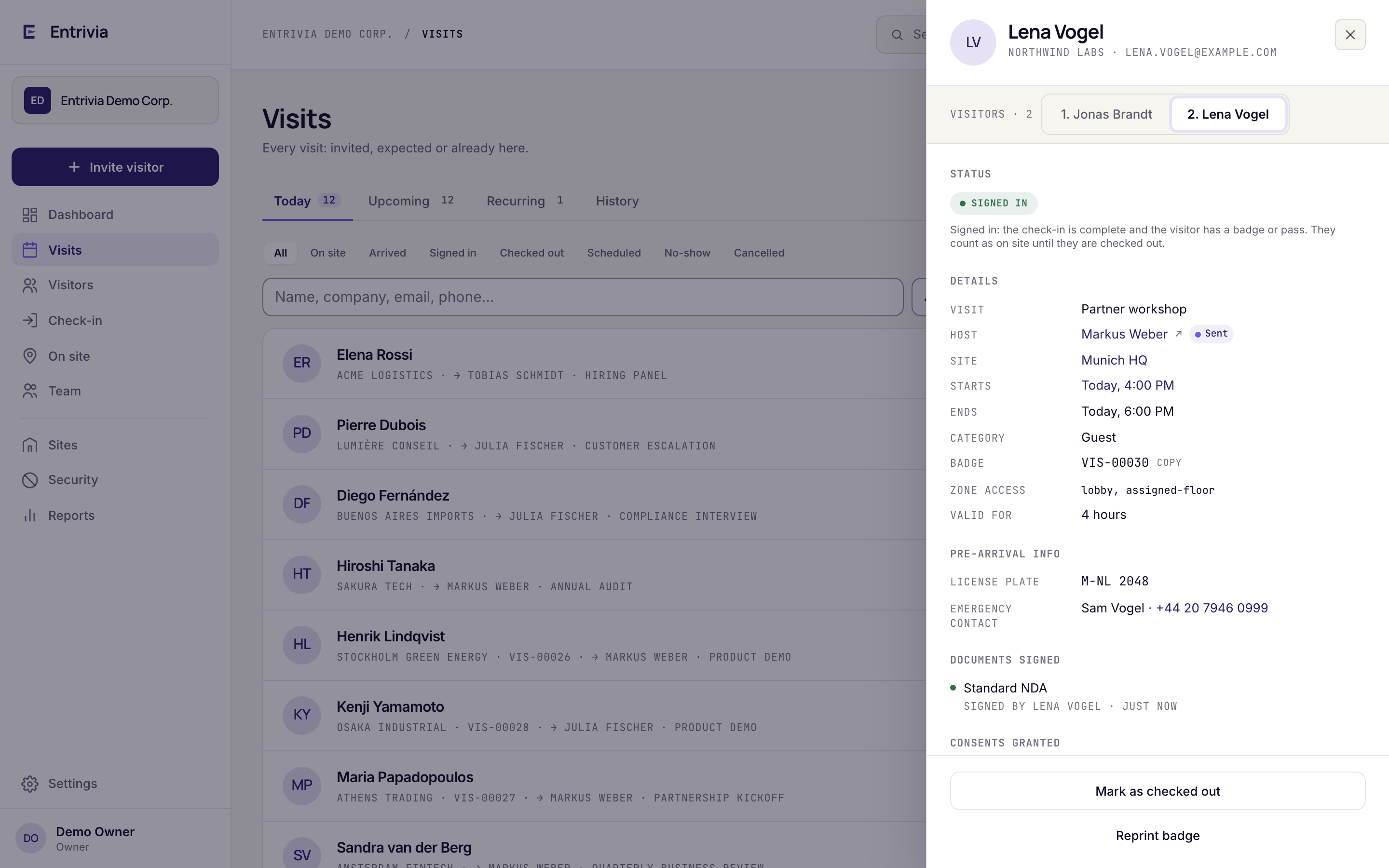
At check-in, reception sees the same information under Pre-arrival details, the visitor's photo, and a note when the NDA was already signed, so the visitor does not sign twice. See Checking in an invited visitor.
Note: Hosts see only the visits they host. Notes, accessibility needs and the emergency contact are there to run the visit safely; do not copy them elsewhere.
Nudging a visitor
If a visitor has not started, the email may have been missed or filtered as spam. Use Resend invite on the visit record. The first visitor on the invite gets a new email, and their earlier link stops working. A visitor who never pre-registers can still be checked in on the day; it only takes a little longer at the desk.
Returning visitors
On the Privacy & data step a visitor can agree to have their details saved for future visits. If they did, the next time anyone invites the same email address, the Add visitor dialog shows a banner and fills in the empty fields: name, company, phone, role and similar details. Reception's search at check-in also finds them under Returning visitors.
Some things are asked again on every visit, on purpose: the photo, the NDA signature and the consent choices. A saved profile only spares the visitor from retyping who they are.
If the visitor did not agree, or later withdraws that consent through your privacy contact, nothing is prefilled.