Badges and printing
How badges reach the label printer, what to do when a print fails, and how to reprint.
Every checked-in visitor gets a pass. The pass on screen, with its QR code, badge number and five-digit code, is what counts. A printed badge is an extra copy of it on a label.
How printing works
Browsers cannot drive label printers. A site therefore needs a small program, the print agent, on a reception PC, connected to a Brother label printer on the network. Your admin sets it up under Settings → Sites and devices; see Kiosks and print agents. When a site has a print agent, every check-in at that site, at the desk or at the kiosk, sends a badge to its printer.
What the badge shows
The label follows the layout your admin sets under Settings → Visit flow in Badge design; see Checklists, fields and badges. A site or a visitor category can have its own layout. The built-in layout prints the visitor's name, the host, the meeting title, your logo, the badge number and the QR code with the five-digit code under it. On a confidential visit the meeting title is left off. The visitor types the five-digit code at the kiosk to check out.
Print status
Open the visit under Visits. The visit record shows the state of the print job:
| Status | Meaning |
|---|---|
| Queued | Waiting for the print agent |
| Printing | Sent to the printer |
| Printed | The printer reported success |
| Print failed | Something went wrong; choose Retry |
A failed print also appears in four other places: as an entry under the notification bell for reception at the site, under Kiosks online on the Dashboard, next to the print agent on the Sites page, and, for admins, in the list of failed prints under Settings → Sites and devices, where Retry sends the badge to the printer again. That list checks for new failures every 30 seconds, and a retried badge leaves it at once.
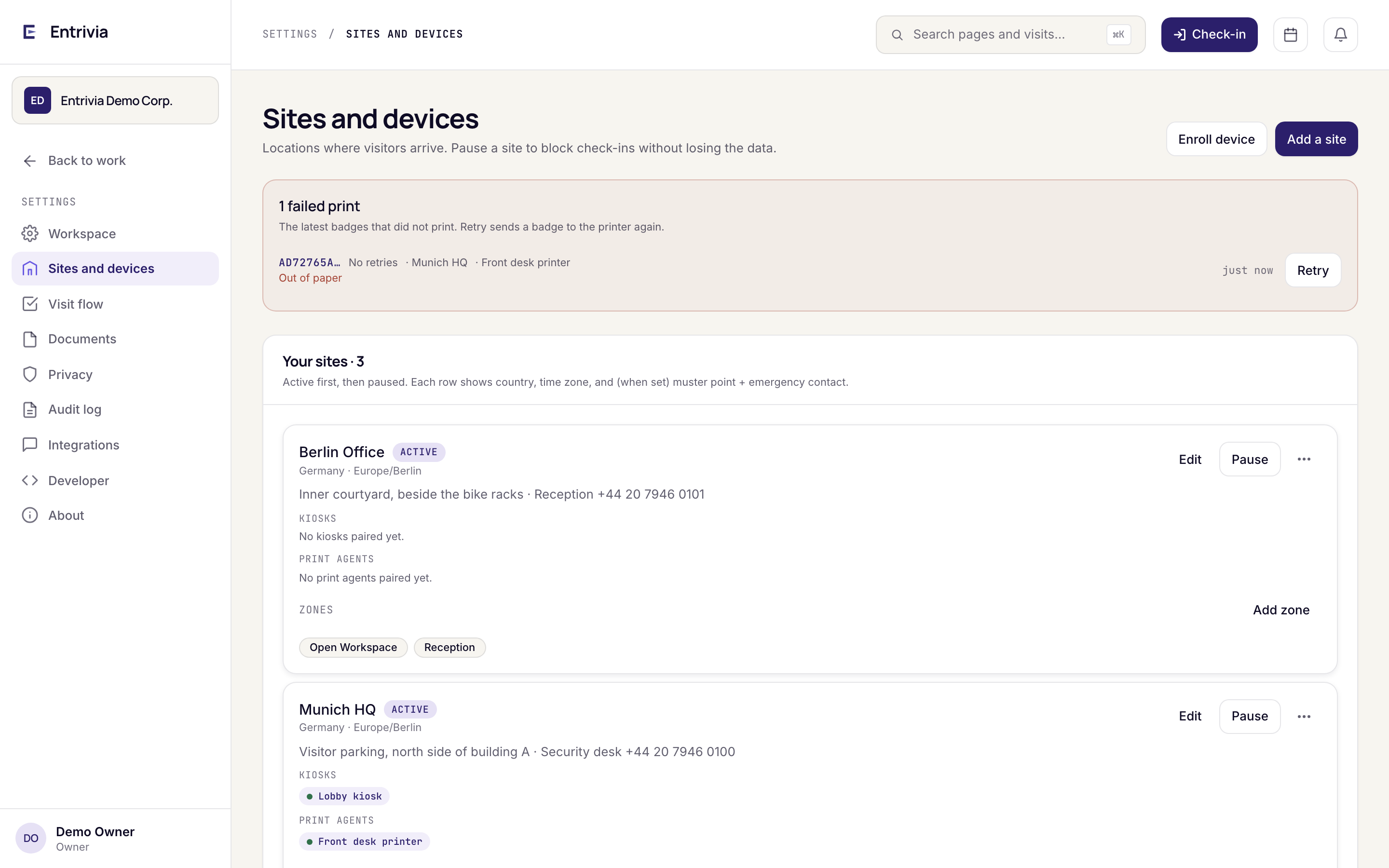
Common reasons are Out of paper, Printer unreachable and Agent timed out — no response in 5 minutes. Refill the paper or check that the reception PC is on and connected, then retry.
Reprinting a badge
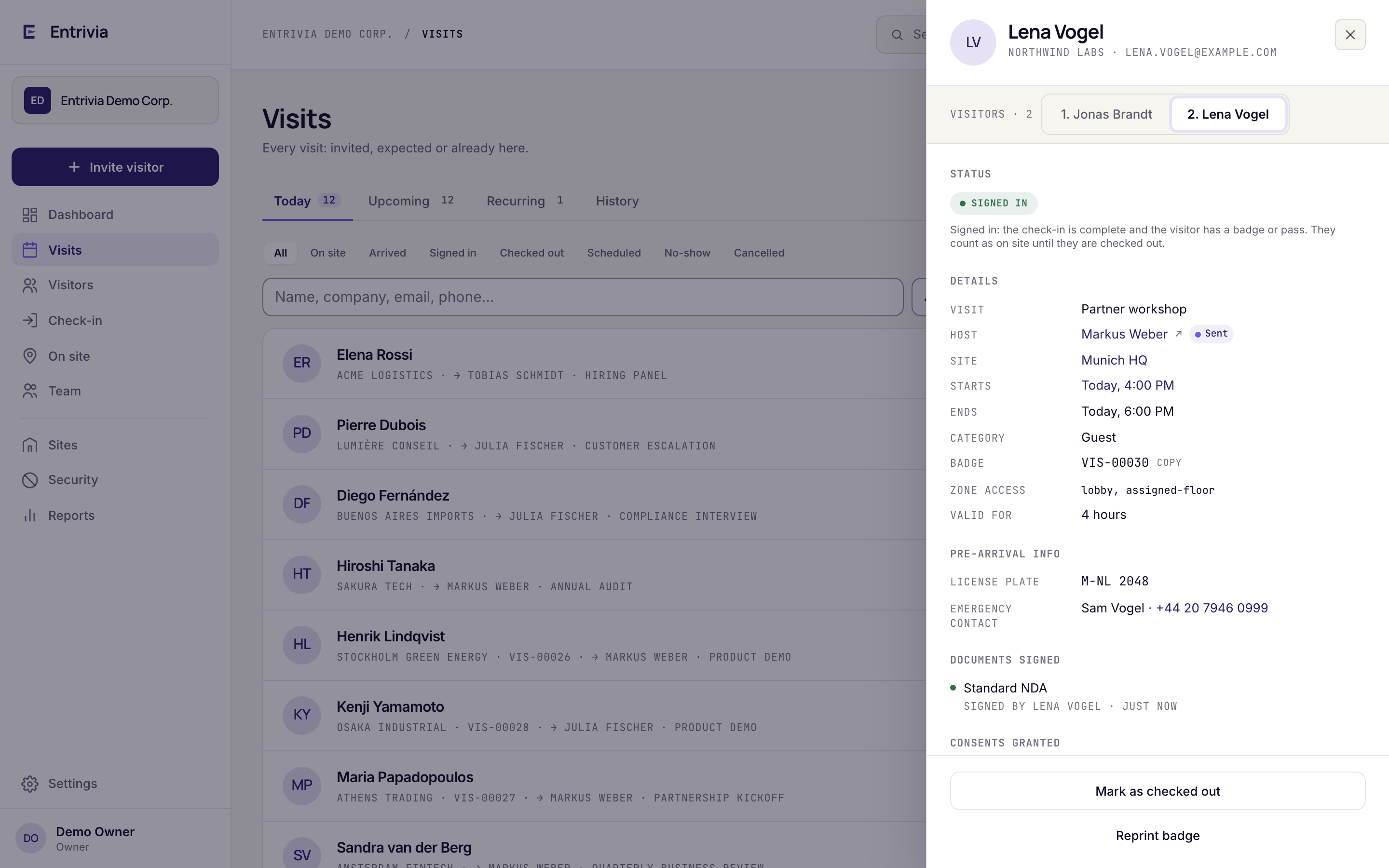
If a badge is lost or damaged, open the visit and choose Reprint badge, then Yes, reprint. The old pass stops working, a new pass with a new five-digit code is issued and a new badge is printed. The badge number stays the same. The visit record shows how often a badge was reprinted, for example "Reprinted 2×". You can reprint for any visitor, whether they were checked in at the desk or at the kiosk.
Events: badges ahead of time
For a visit marked as an event, the visit record offers two more actions to owners, admins and reception:
- Pre-issue badges reserves a badge for every expected guest before the day. It reports how many were issued and how many guests already had one.
- Print badges sends every pre-issued badge that has not been printed yet to the site's printer. Badges already printed are skipped.
A pre-issued badge starts to work only when its guest checks in. If the site has no print agent, you see "This site has no badge printer set up yet. Badges can still be shown on a phone."