Reading the audit log
Who can open the audit log, what an entry contains, and how to narrow it down to what you are looking for.
Who can see it
Security staff and auditors open Audit log in the rail; owners and admins find it under Settings, after Privacy. Owners, admins, security staff and auditors can read the full log. Hosts and reception cannot open it. Nobody can edit or delete an entry, not even the owner: if something was recorded wrongly, the correction is a new change with its own entry.
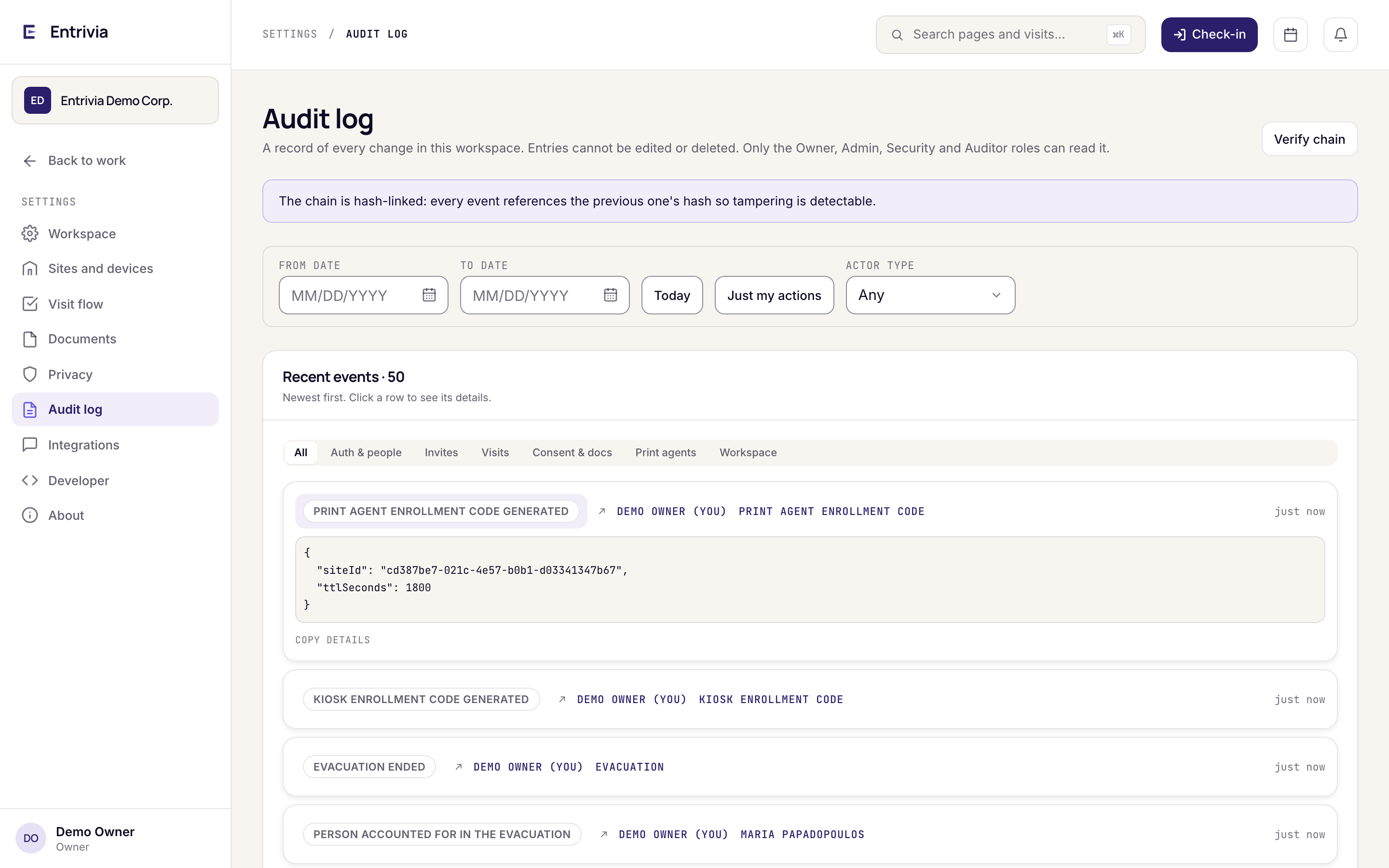
What an entry tells you
Each row shows what happened, who or what did it, which record it concerned and when. Click a row to see the details of the change, and Copy details to copy them, for example into a report.
The actor is one of four kinds:
| Actor type | Meaning |
|---|---|
| User | A member of staff, signed in to the portal |
| Device | A kiosk or a print agent, for example a visitor checking in at a kiosk |
| Visitor | A visitor acting for themselves, for example during pre-arrival |
| System | Entrivia on its own, for example the nightly cleanup or an automatic no-show |
On a confidential visit, owners, admins and security still see the visitor's name in the log. Entries about sanctions screening are shown only to owners, auditors and people with the Compliance permission.
Finding what you need
The newest entries come first. Use the controls above the list to narrow it down:
- The chips All, Auth & people, Invites, Visits, Consent & docs, Print agents and Workspace pick a family of events.
- Actor type limits the list to one kind of actor.
- From date and To date set a range; Today jumps to the current day.
- Just my actions shows only what you did yourself.
- Click the actor, the record, the event name or the time in a row to filter to it; the time filters to that day. Each active filter shows as a chip; remove it there, or use Clear filters.
Dates count as whole days in your workspace's time zone, so an event shortly after midnight appears under the day it happened there.
At the bottom, Load older events fetches the next page. When you see Reached the start of the chain. you have the very first entry of the install, the creation of the workspace.
Getting there from a record
Many pages link straight into the log, already filtered:
- View audit trail → in a visit record, see The visitors list.
- View audit trail → on a team member, a kiosk, a print agent or a blacklist entry.
What is not in the log
Exporting the log as CSV or PDF is planned; until then, use Copy details for single entries.
To check that no entry was removed or changed, see Verifying the chain.