Inviting teammates
Add a colleague to the workspace by email, and resend or withdraw an invitation.
Owners and admins add colleagues from Team in the rail. You never create a password for anyone: the colleague receives an email and chooses their own.
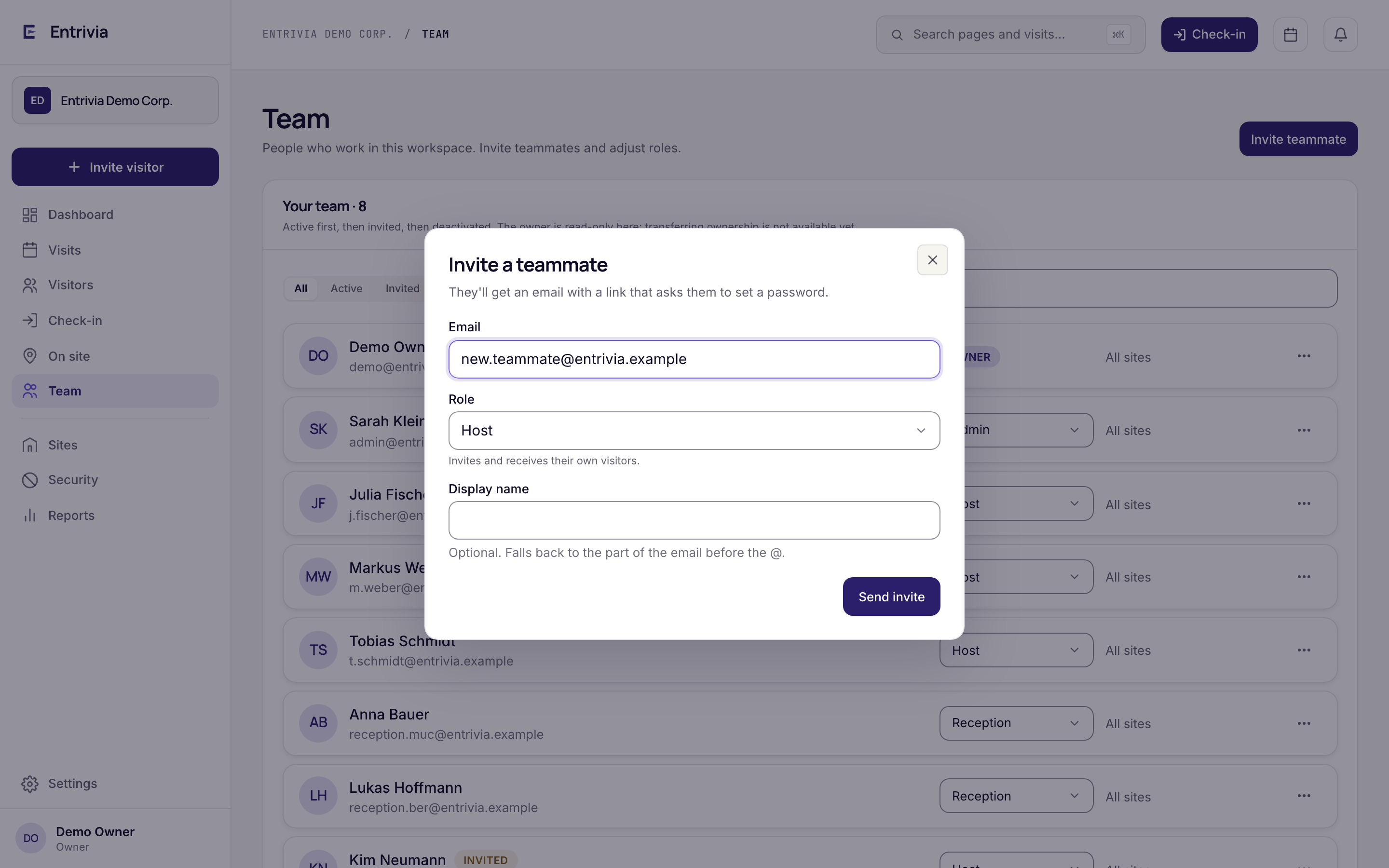
Sending an invitation
- On Team, select Invite teammate.
- Enter the colleague's Email.
- Pick a Role: Admin, Host, Reception, Security or Auditor. One line below the picker describes the role you chose. If unsure, read Roles first. The owner role cannot be given by invitation.
- Optionally enter a Display name. Without one, the part of the email address before the @ is used.
- Select Send invite.
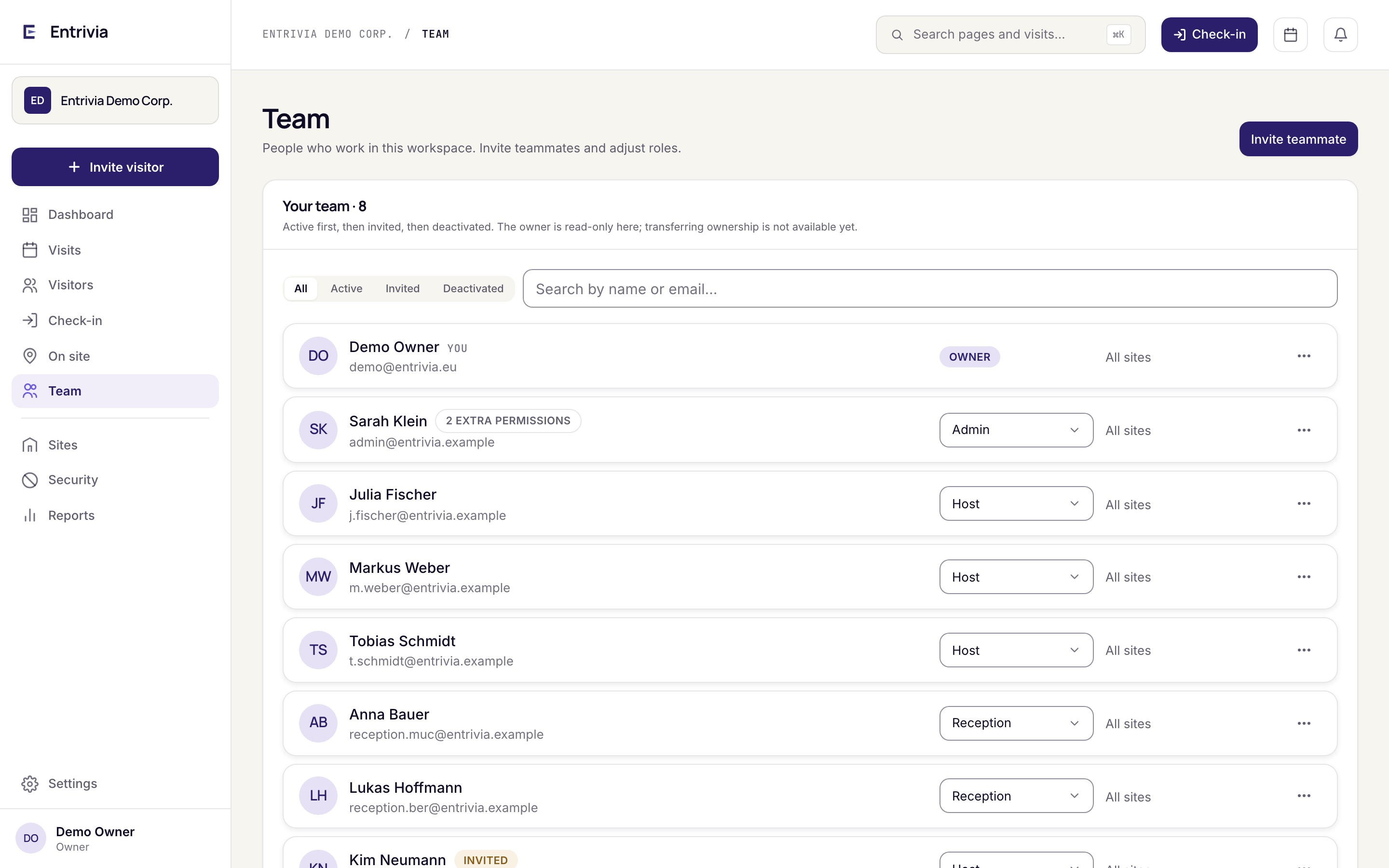
The colleague appears in the list with the status Invited until they accept.
What your colleague receives
The colleague gets an email with the subject You've been invited to and your workspace name. It says who added them and with which role, and asks them to accept the invitation to set a password and sign in. They select Accept invitation, choose a password and are signed in straight away; see Signing in.
The link works once and expires after seven days.
Resending or withdrawing
On a row with the status Invited, the … menu offers:
- Resend invite sends a fresh email with a new link, and a short message confirms it. The old link stops working. Use this when the first email was lost or the link expired. Inviting the same address again from the form does the same, and also updates the role if you picked a different one.
- Cancel invite withdraws the invitation. The link stops working, and the person cannot sign in.
You cannot invite an address that already belongs to an active member; the form says so.
Finding people
The search box finds someone by name or email. Owners, admins and auditors also get the filter All, Active, Invited or Deactivated; active people come first, then invited, then deactivated ones. Everyone else sees the active team only. Where your company uses staff presence, owners, admins, reception and security see On site today and the site beside the people who marked themselves on site.
Accounts from single sign-on
If your operator has connected your company's single sign-on, colleagues can also get an account without an invitation: the first time someone signs in with an address at one of your company's verified email domains (see Workspace settings) that has no account yet, Entrivia creates one with the Host role, the role with the fewest rights for staff. Check the list now and then and give such accounts the role they need; see Changing roles and permissions. Someone who was invited and signs in through single sign-on for the first time accepts their invitation that way.
Every invitation, resend and cancellation is recorded in the audit log.