Checking in at the kiosk
What a visitor sees on the tablet, from the start screen to the welcome.
The kiosk shows one question per screen and offers a way back or to reception on every screen. This article follows a visitor through it, so you know what they see and can help when they get stuck.
Start and reason for the visit
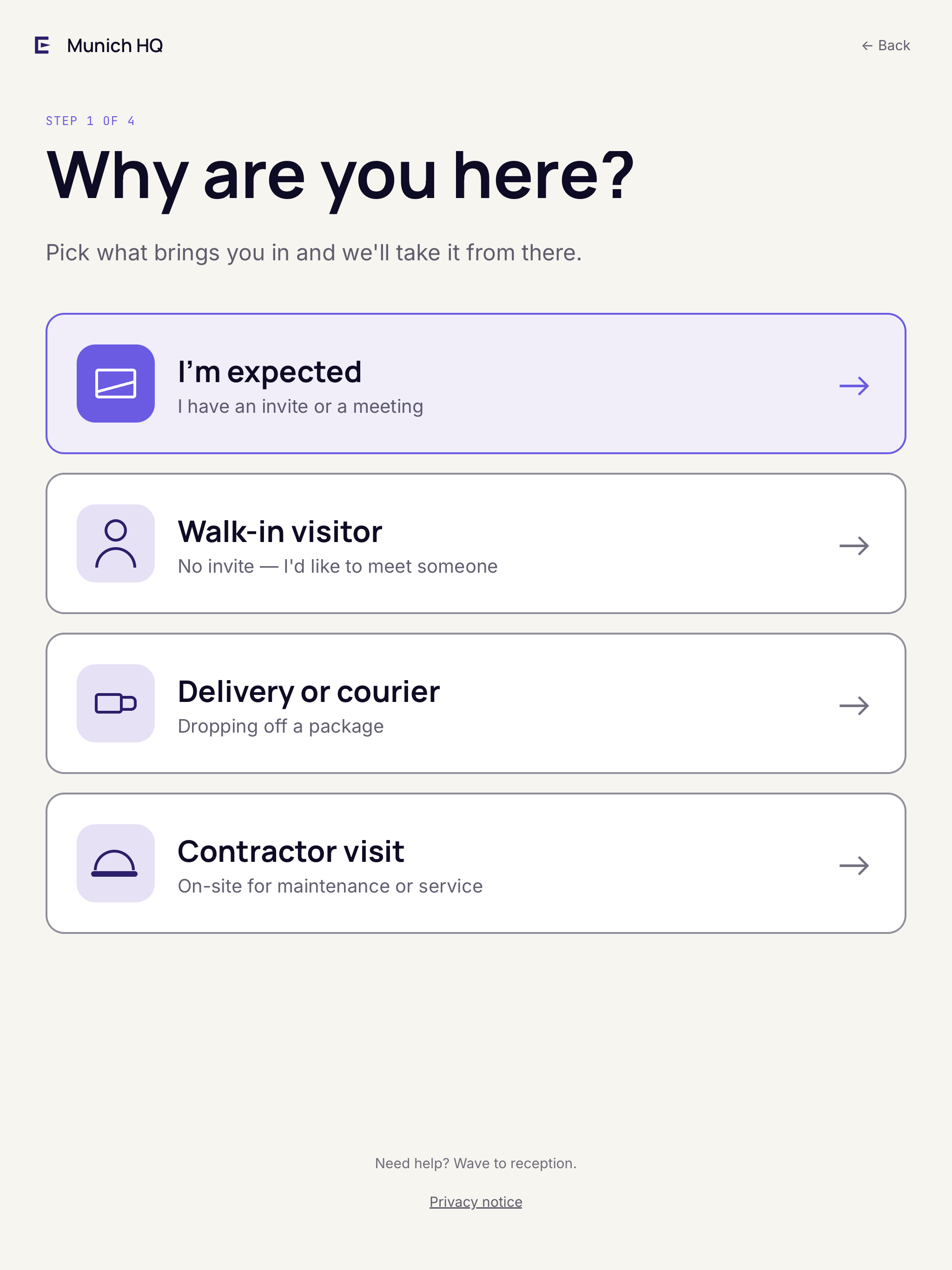
The start screen says Welcome. with the button Check in →. The visitor taps it and sees What brings you in? with four tiles:
| Tile | For |
|---|---|
| I'm expected | Visitors with an invitation |
| Walk-in visitor | People without an invitation who want to meet someone |
| Delivery or courier | Someone dropping off a package |
| Contractor visit | Maintenance or service work on site |
On a day with an event at the site, one extra tile per event follows I'm expected, showing the event's name and the number of guests.
Invited visitors
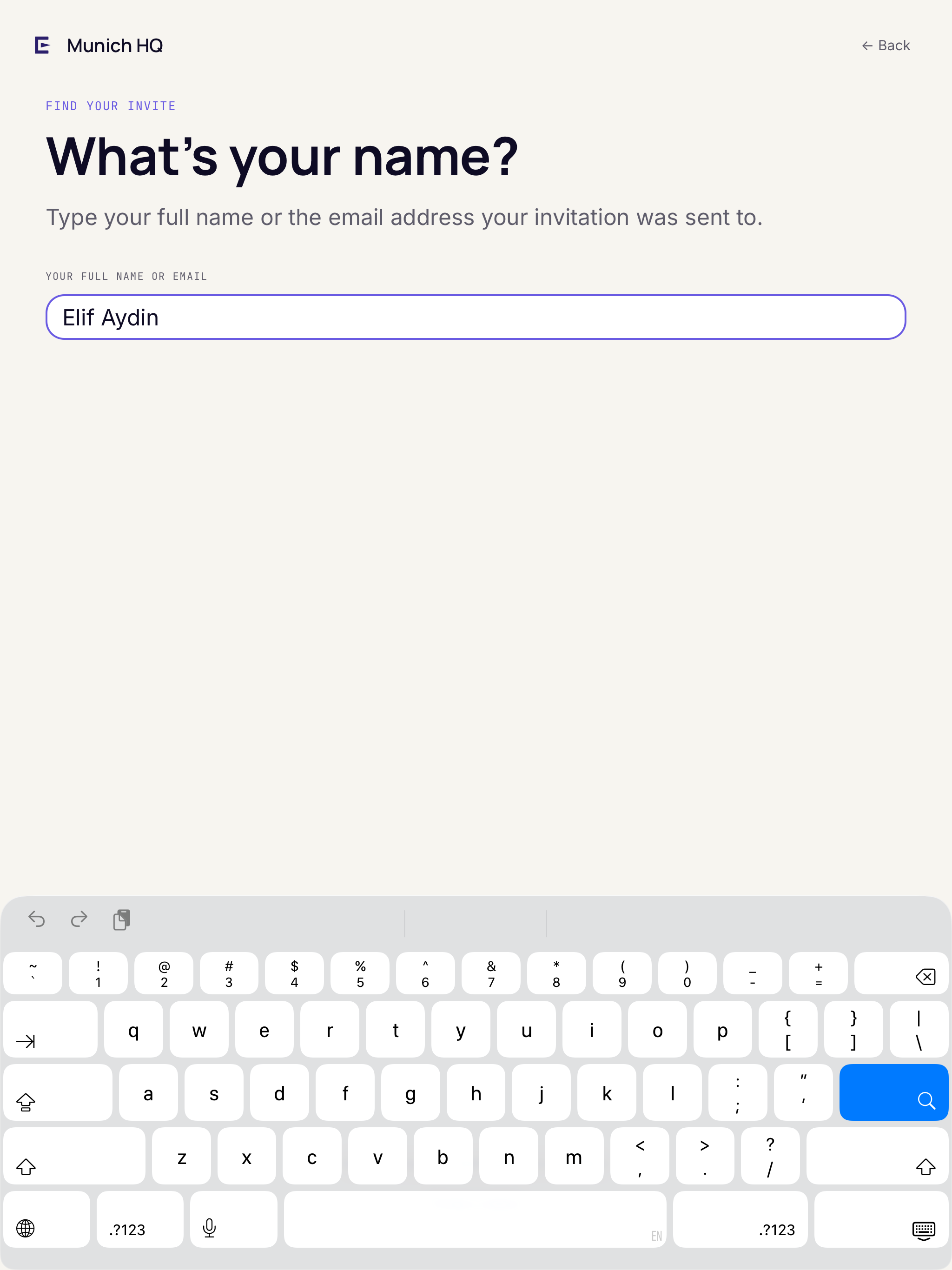
- After I'm expected, the kiosk asks What's your name? The visitor types their full name or the email address the invitation was sent to.
- The name must match the invitation exactly; spelling does count, upper and lower case do not. Partial names find nobody, so that no one can browse who is expected. If several guests share the name, up to five are listed with their company.
- The kiosk shows the visitor's first name with a question mark, their host, the meeting and the time. The visitor taps That's me, or Not me to search again.
For an event, the visitor taps the event's tile and types their full name as it appears in the invitation.
If nothing is found, the kiosk suggests choosing Walk-in visitor or waving to reception.
Walk-ins and contractors
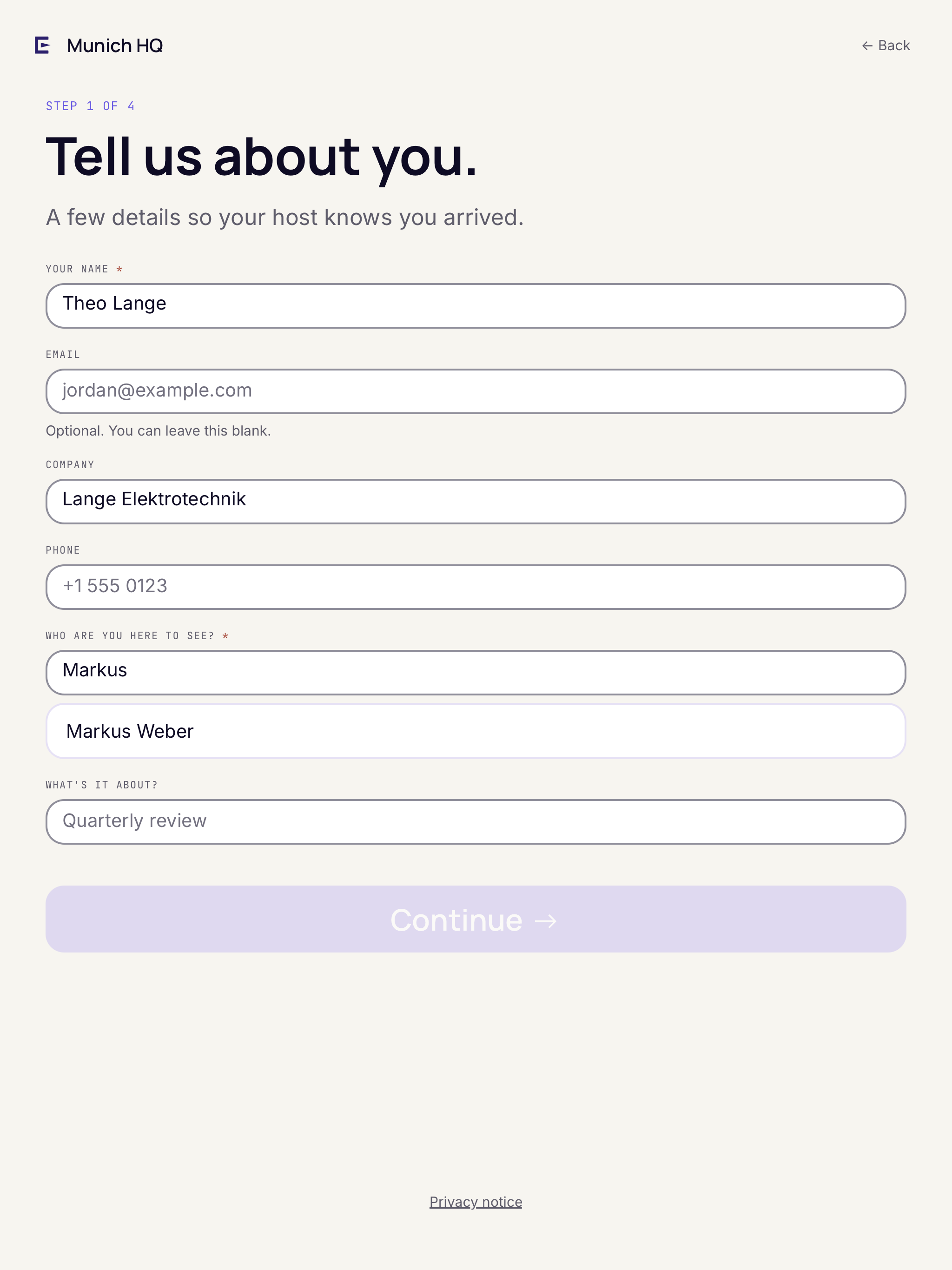
The visitor fills in Your name, an optional Email, Company and Phone, then types at least two letters of a name under Who are you here to see? and picks the host. A last field asks what the visit is about. The tile they chose decides the wording; the steps are the same.
NDA and photo
If the visitor owes an NDA, the kiosk shows A confidentiality agreement (NDA). The visitor reads it, signs with a finger, and taps I agree; Clear starts the signature over. The line "By continuing, you confirm you have seen our privacy notice." sits above the button. A visitor who taps I do not want to sign is asked to wait at reception.
Next comes A photo for your badge. The tablet takes the photo by itself after a short countdown. If the photo is optional, the visitor can tap Skip. If it is required, the button reads I'd rather not, and the visitor is asked to wait at reception.
Couriers who chose Delivery or courier skip the NDA and the photo and get a pass for the lobby only, valid for 30 minutes. The welcome screen then says "Lobby only, until" and the time.
Done
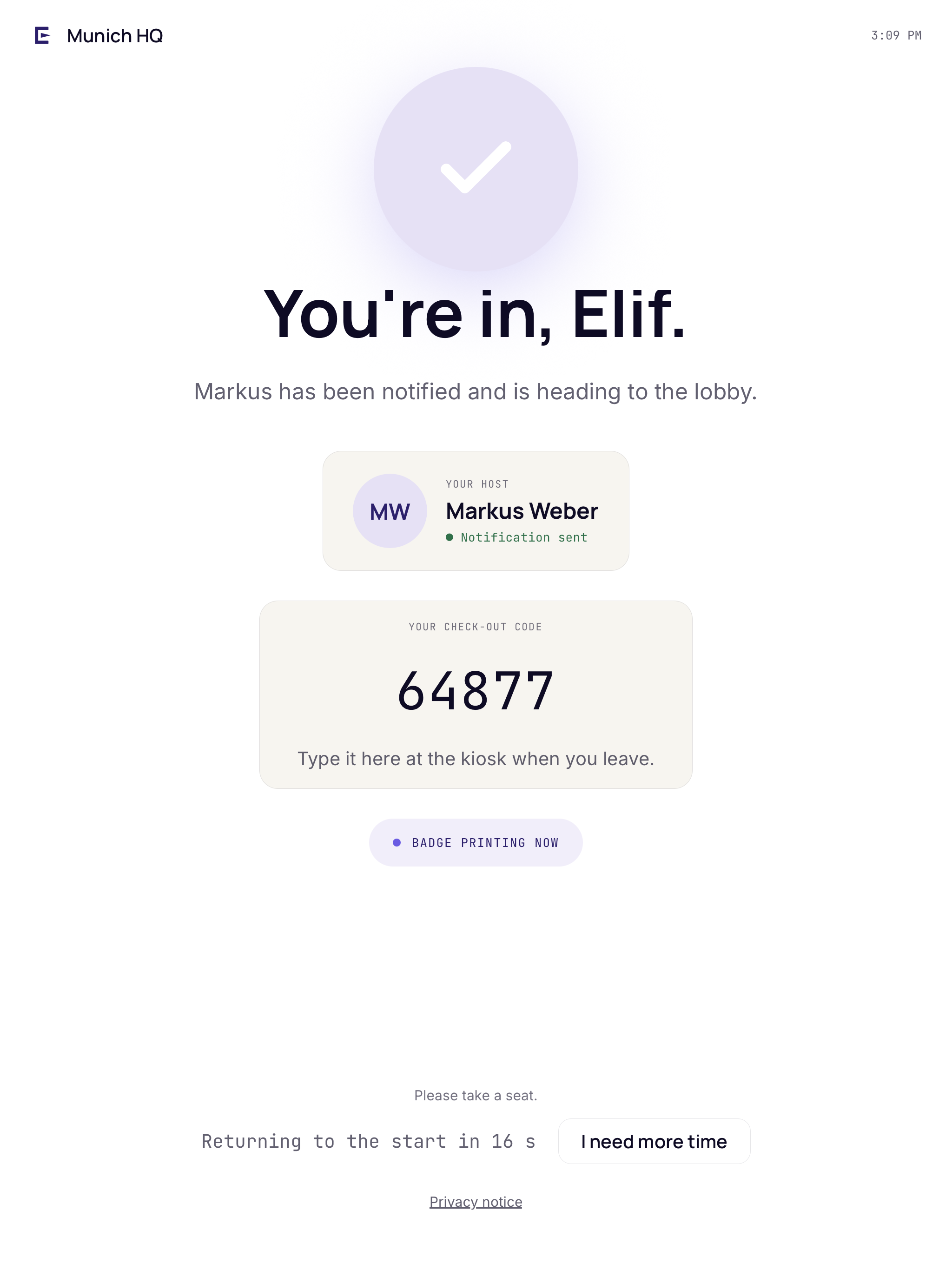
The kiosk says You're checked in, followed by the visitor's first name and says the host has been notified. Under Your host it shows the host's name with Notification sent. Below that, Your check-out code shows the five-digit code the visitor types at the kiosk when leaving; it is also printed under the QR code on the badge. The badge indicator Badge printing now is always shown; a badge only comes out where the site has a print agent (see Badges and printing). After 20 seconds the kiosk returns to its start screen.