Document templates
Write, activate and retire the NDA, waiver and briefing templates visitors see.
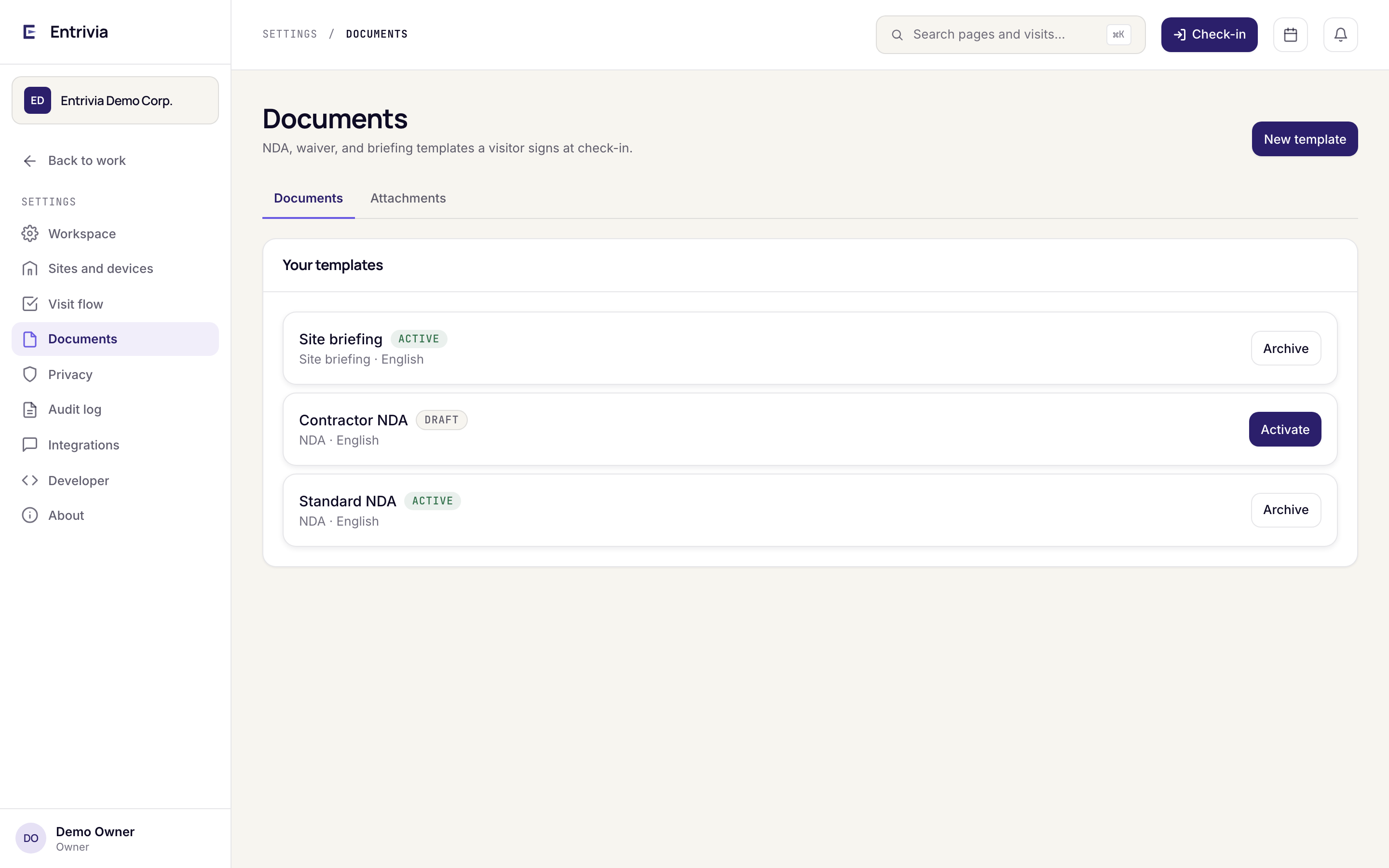
Settings → Documents holds every document a visitor may be asked to read or sign. Owners and admins create, activate and archive templates. Auditors can read them.
Kinds of documents
| Kind | Used for |
|---|---|
| NDA | The non-disclosure agreement visitors sign before their pass is issued |
| Waiver | A liability waiver |
| Terms of service | Terms the visitor accepts |
| Site briefing | The safety briefing shown before arrival, see Safety briefings |
Creating a template
- Open Settings → Documents and click New template at the top of the page.
- Choose the Kind.
- Give it an Internal name, for example "Standard NDA". Visitors do not see this name.
- Pick the Language of the text. It starts on your workspace language; visitors who use this language read this version.
- Under Site scope, keep All sites (workspace-wide) or pick one site if this text applies only there.
- Write the Text. Two asterisks around a word make it bold, a line starting with
-is a list item and a line starting with#is a heading. The Preview beside it shows the text as visitors will see it. - Click Save as draft. Cancel closes the form without saving.
The list shows each template with its kind and language.
A draft is not shown to anyone yet. Check it, then click Activate in the list.
Versions, activation and archiving
Only one template is active per kind, language and site. Activating a new one archives the one that was active before, in the same step. This is how you publish a new version of your NDA: create the new text as a draft and activate it.
- Future visits use the newly active version.
- Past signatures stay tied to the exact version the visitor signed. Nobody has to sign again.
- Archive retires a template. Templates cannot be deleted, because signatures must always be able to point at the text that was signed, and an archived template cannot be activated again.
A visitor sees the version in their own language when one exists; otherwise English, then the workspace language.
Which NDA a visitor signs
Activating an NDA alone does not make invited visitors sign it. What they sign comes from their visitor category:
| Visitor | NDA they are asked to sign |
|---|---|
| Invited, category names an NDA template | That template, in their language if a version exists |
| Invited, category set to No NDA required for this category | None |
| Walk-in meeting a host, or contractor | The active NDA of their site, else the workspace-wide one |
| Delivery | None |
So after you activate your NDA, open Settings → Visit flow and pick it, under Visitor categories, as the NDA template for each category that should sign, starting with your default category (see Visitor categories). If you later archive that template, its site's or the workspace's active NDA stands in.
The category's choice is fixed when the invite is sent. Visitors who are already invited keep what applied then, even if you change the category afterwards.
Note: When a visitor owes no NDA, the signing step is skipped at reception, at the kiosk and in pre-arrival.