The blacklist
Keep people out, or let them in while security is told, with a documented reason for every entry.
The Blacklist tab of Security lists people your company does not want to check in, or wants to know about when they arrive. It is marked Restricted and opens with a Handle with care. notice: an entry stops a real person at every kiosk and reception desk, so add one only with a clear, documented reason.
Owners, admins and security add and expire entries. Reception and auditors can read the list. Hosts cannot see it at all.
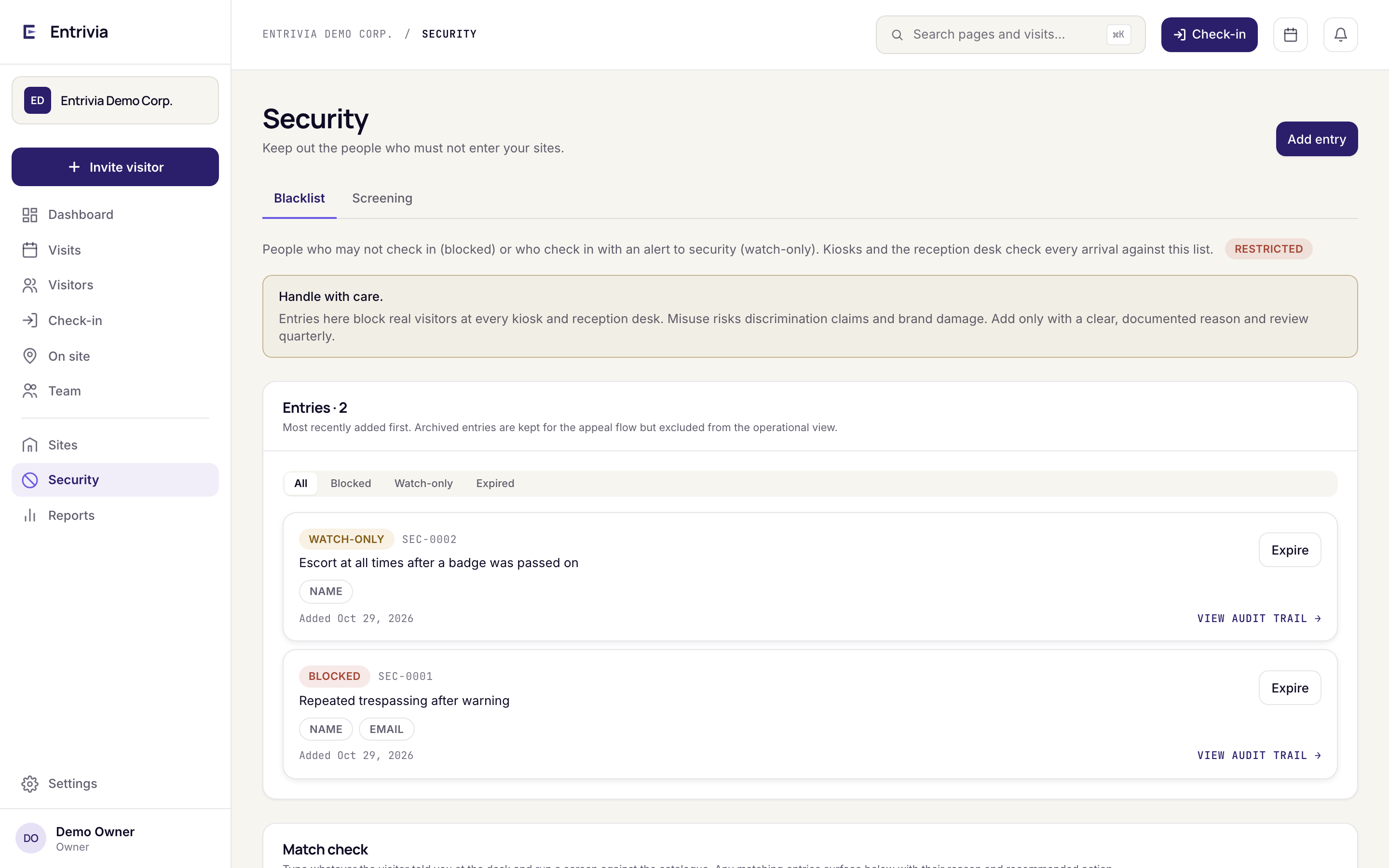
Blocked and watch-only
| Type | What happens when the person arrives |
|---|---|
| Blocked | Check-in is refused. The visitor is asked to wait at reception; security is told. |
| Watch-only | Check-in goes ahead as normal. Security is told quietly. |
| Expired | The entry no longer matches anyone. It stays on file for the record. |
The visitor never sees a reason. At the kiosk they see the same calm "please wait at reception" screen as for any other hold. Security receives an entry in the notification bell, such as "Blacklist match at" the site.
Adding an entry
- Open Security in the rail and click Add entry.
- Choose the Type: Blocked or Watch-only.
- Fill in at least one of the Match keys (at least one required): Full name, Date of birth, ID number, Email, Phone. A date of birth pairs with the name, so a common name does not stop everyone who shares it. An ID number is stored only in scrambled (hashed) form, never as plain text.
- Write the Reason in plain language. It is required. Add an Internal reference, such as an incident or ticket number, if you have one.
- Click Add entry.
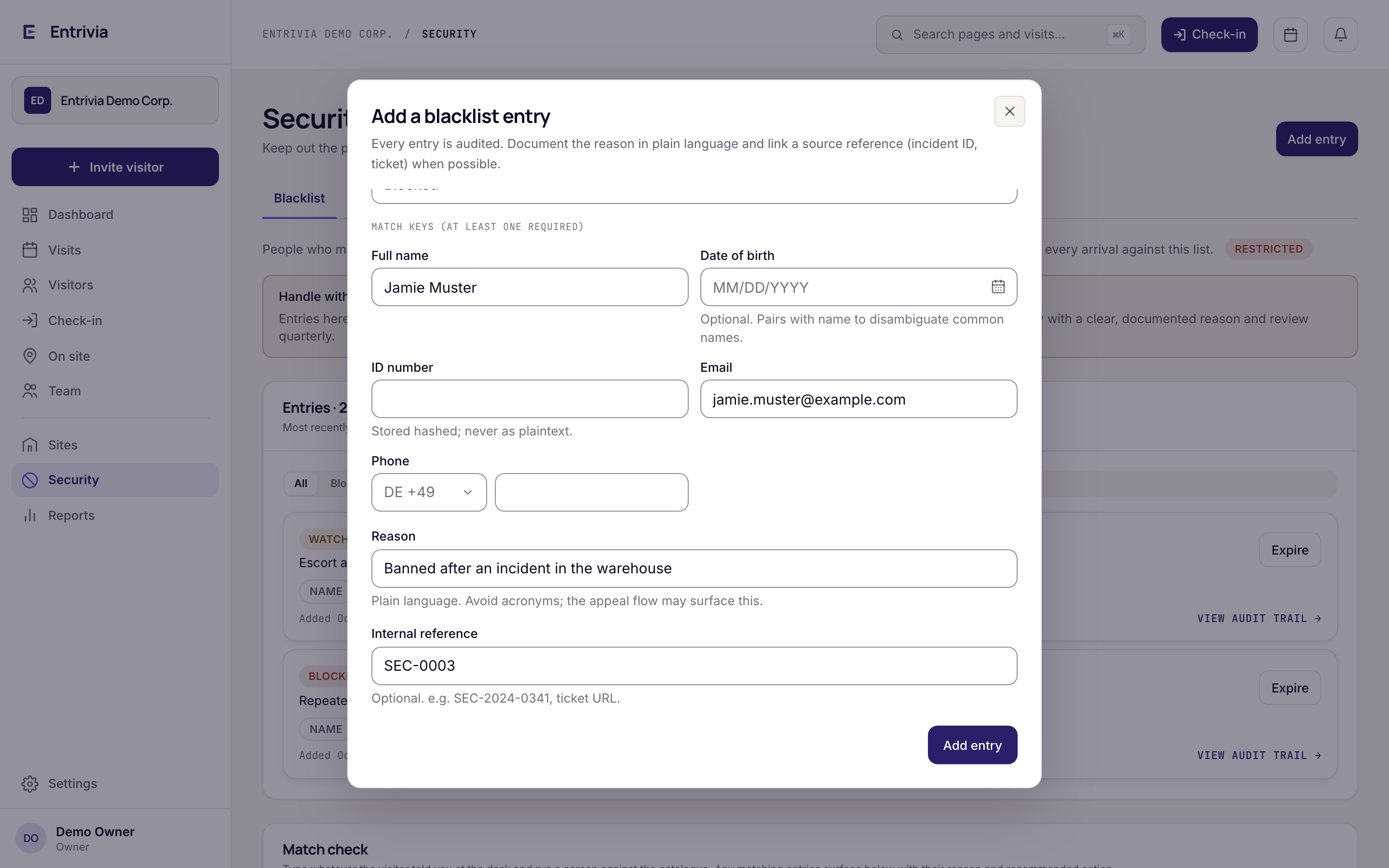
An entry applies at every site and has no end date: it stays active until someone expires it. The form says so above the fields. Entries cannot be edited; if something is wrong, expire the entry with Expire and add a new one.
Where the blacklist is checked
- When a host sends an invite. If a guest matches a blocked entry, nothing is sent and the host sees "One of these visitors can't be invited. Please contact your security team before you try again."
- When reception starts a check-in. The desk sees a calm message that security has been notified and the visitor should wait.
- At the kiosk. The visitor sees the wait screen; security is notified.
Checking someone by hand
The Match check panel lets reception or security type what a visitor said at the desk, such as a name or phone number, and click Run check. Matching entries appear with their reason.
Recent attempts shows the last 25 matches, blocked or with an alert, and whether they happened via kiosk or via reception. An attempt does not show who it was; click it to jump to the entry it matched in the list. Every new entry, every expiry and every match is written to the audit log.
Using the blacklist fairly
A blacklist holds personal data about people who have not agreed to be on it. Keep entries short, factual and justified, review them regularly and expire the ones that no longer apply. A listed person can object or ask what is held about them through your company's privacy contact. Entrivia never matches faces or photos; matching uses only the text you enter.