Signing in
Accept your invitation, sign in with a password, a passkey or single sign-on, and reset a forgotten password.
Nobody signs up for Entrivia on their own. An owner or admin of your workspace invites you, and you set your password from the link in that email.
Accepting your invitation
You receive an email with the subject You've been invited to followed by your workspace name. It says who added you and with which role.
- Open the email and select Accept invitation. If the button does not work, copy the link from the email into your browser.
- The page Accept your invitation opens. Enter a Display name (optional) if you want colleagues and visitors to see a name other than the start of your email address.
- Choose a Password. Long passphrases are best.
- Select Accept invitation. You are signed in straight away.
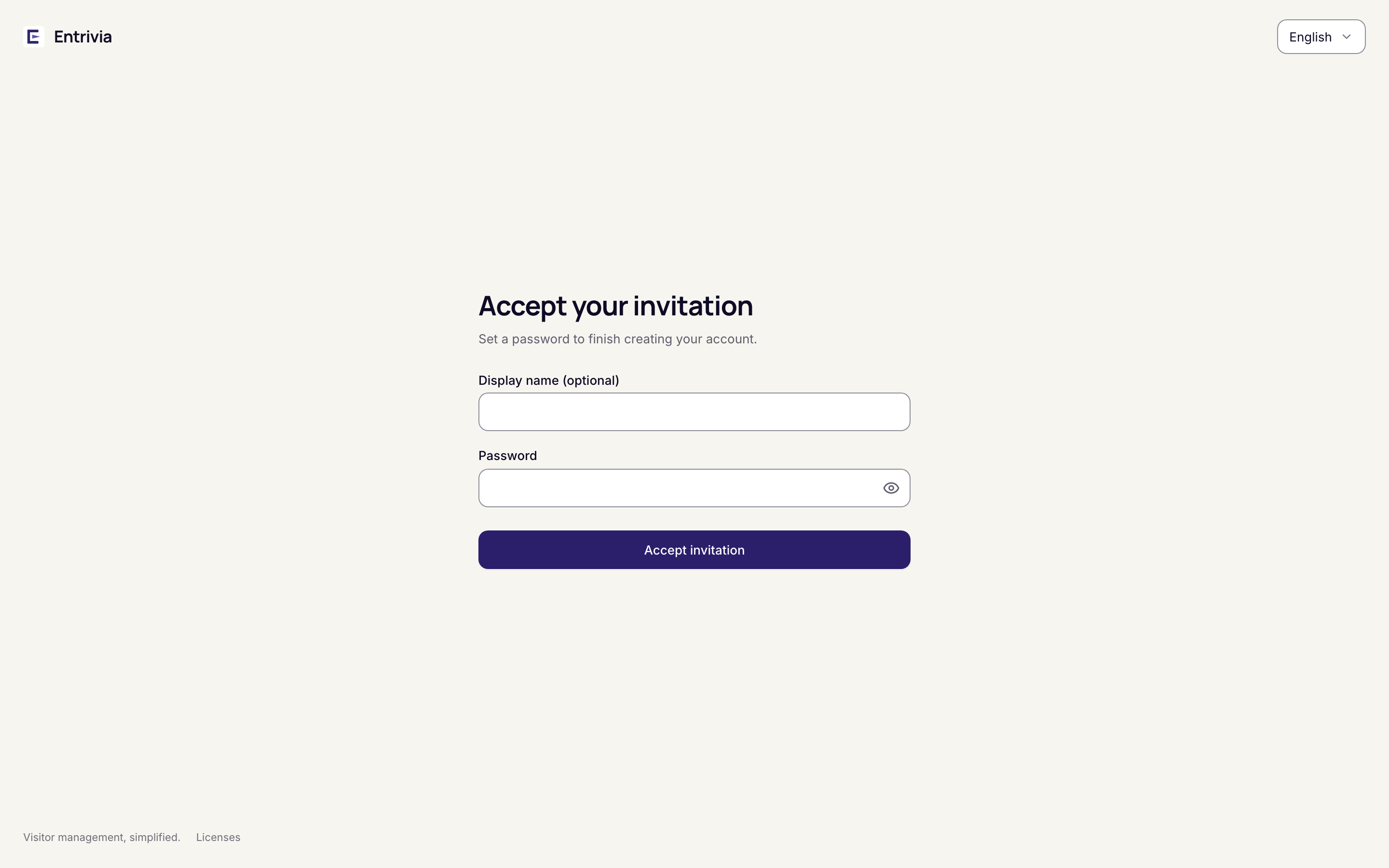
The link works once and expires after seven days. If it has expired or was already used, ask an admin to send the invitation again.
Signing in
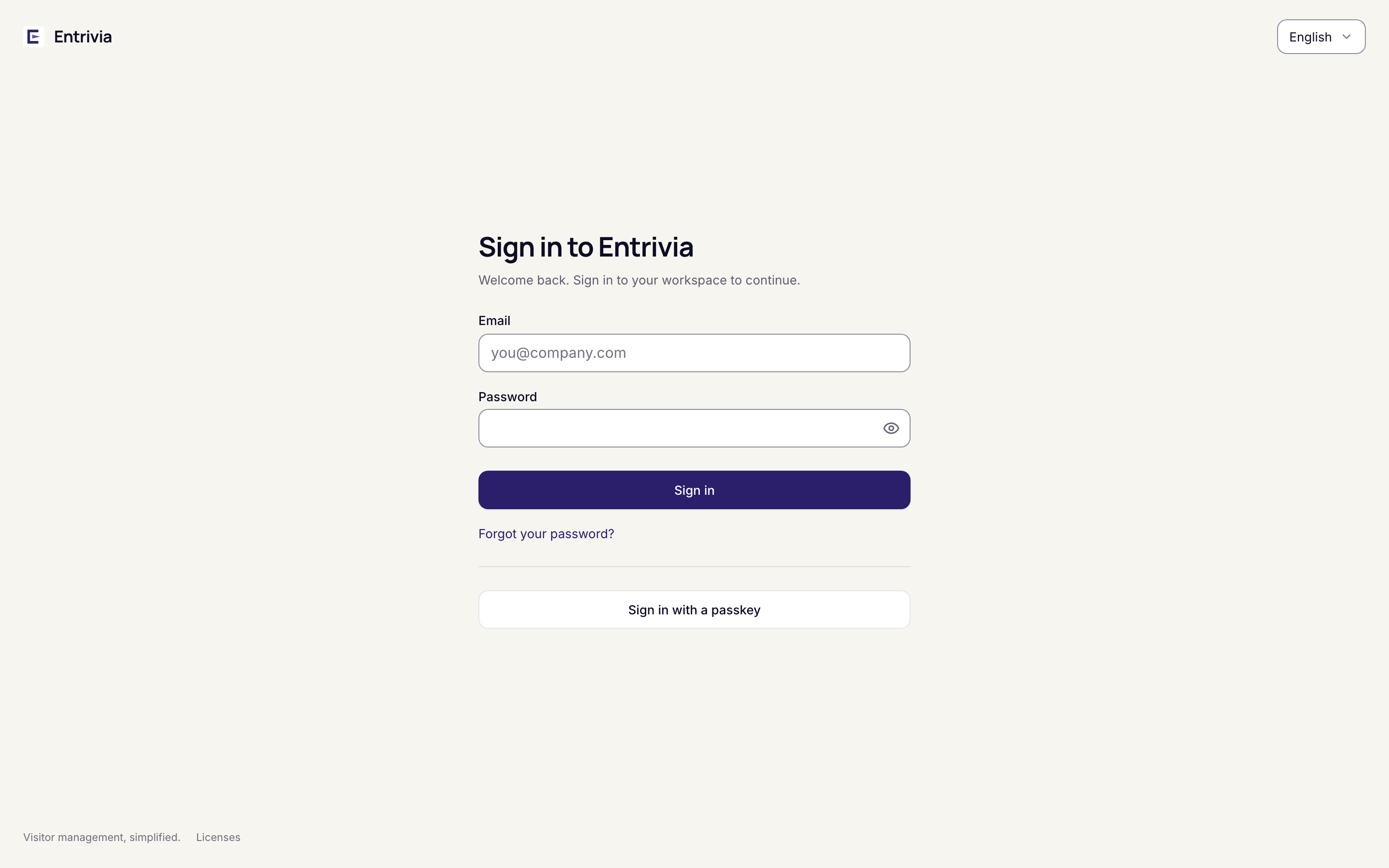
On the page Sign in to Entrivia you have up to three ways in:
| Option | When to use it |
|---|---|
| Email and Password, then Sign in | Always available. |
| Sign in with a passkey | After you have added a passkey to your account (see Your account). Your browser asks for your fingerprint, face or device PIN; no email or password needed. |
| Continue with your company's sign-in | Only shown when your operator has connected your company's single sign-on. You sign in with your usual company account. |
Note: With single sign-on, the first sign-in of a company address that has no Entrivia account yet creates one with the Host role, but only if the address is at one of your workspace's verified email domains (see Workspace settings). Anyone else needs an invitation first. An admin can change the role afterwards. If the page says This account cannot sign in, ask an admin of your workspace.
Forgot your password
- On the sign-in page, select Forgot your password?.
- Enter your email and select Send reset link.
- Open the email and follow the link to Set a new password, then select Update password.
For your protection the page always says a link is on its way, even when the address has no account. Resetting your password signs you out on every device and removes your passkeys; add them again afterwards.
When the portal says "not set up yet"
If you see Entrivia is not set up yet, the install has no workspace yet. Nobody can fix this from the portal: your operator has to finish the setup. Reload the page once they are done.
Signing out
Select your name at the bottom of the rail, then Sign out. On a shared reception PC, sign out at the end of your shift so the next person does not work under your name: everything you do is recorded with your account in the audit log.